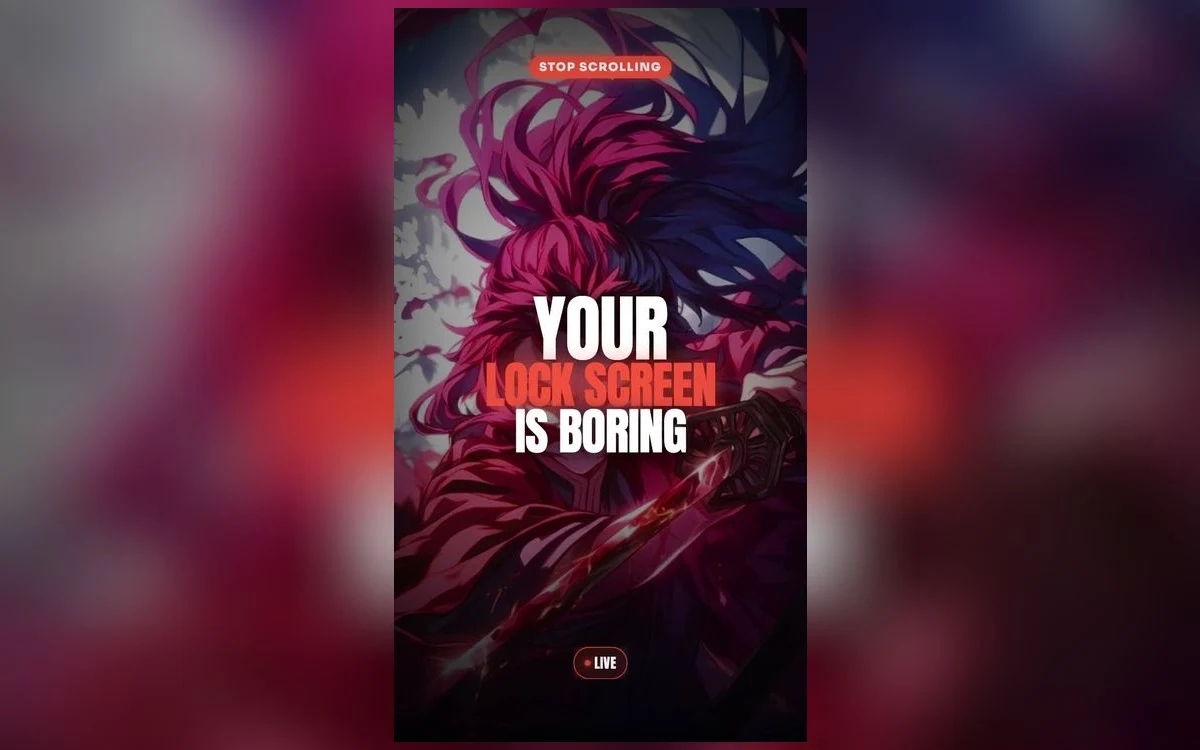
Focus modes are the most useful iPhone feature that most people set up once and never finish. You can attach a different lock screen to each one, so the phone changes appearance when you start work, go to sleep or begin driving. Anime wallpaper is a good fit for this, because the same series usually spans calm and loud in a way one image cannot.
Here is how to build a set that actually earns its place, rather than four wallpapers that change for no reason.
What linking a lock screen to a Focus actually does
When a Focus turns on, the phone switches to the lock screen you attached to it, and switches back when the Focus ends. It is a visual signal rather than a functional one: nothing is blocked or unlocked by the wallpaper itself.
That is the point. The value is that you can tell at a glance which mode the phone is in, without reading anything. If your four screens all look broadly similar, you have gained nothing.
To set it up, touch and hold the lock screen while the phone is unlocked, tap the plus button to add a screen, then use the Focus control in the editor to attach one.
Pick by contrast, not by favourite
The mistake is choosing four wallpapers you like. What you want is four wallpapers that are obviously different from each other at a glance, in that order of priority.
Work or Personal. The default screen, and the one you see most. This should be the calmest of the set: muted, low contrast, a subject that does not demand attention. Anything you find striking will be tiring here.
Sleep. Near-black, minimal, and genuinely dark rather than dark blue. This is the one you look at in a dark room at night, and it should be the least bright thing on the phone.
Do Not Disturb. The place for the loud piece. A saturated, high-contrast, unmistakable image, because the whole point is knowing instantly that notifications are off.
Driving or Fitness. Simple and legible at a distance and at speed. A single large shape, high contrast, no fine detail.
Sleep is the one worth getting right
The Sleep screen is checked at night, in the dark, usually half awake, and a bright wallpaper at that moment is genuinely unpleasant. Pick something near-black, and on an OLED iPhone that costs almost nothing in power because unlit pixels draw none. It is also the screen where a widget earns its place more than anywhere else: a single line under the clock is easier to read at 3am than opening the phone. Adding one does disable the depth effect on that screen, which matters far less here than on the others.
Starting with two rather than four
Four screens is the finished version and a bad place to begin, because you end up choosing three wallpapers you do not really want in order to fill the slots.
Start with two: your default and Sleep. Those are the two you will genuinely see every day, and the contrast between them is the one that pays off immediately. Live with that for a week.
If you find yourself wanting a third, it will usually be Do Not Disturb, because that is the mode where knowing the state matters most. Add it then, when you know what you want it to feel like rather than guessing.
Driving and Fitness are worth adding only if you actually use those Focus modes. A lock screen attached to a Focus you never trigger is invisible, and building it is time spent on something you will not see.
The general rule: add a screen when a mode has started to matter, not in advance.
Keeping them related without making them the same
Four unrelated wallpapers make the phone feel unsettled. The trick is a shared thread that is not the subject.
The easiest thread is one series across four moods, which most long-running anime provides: a quiet scene, a night scene, a fight scene, a graphic or emblem. The second easiest is one character in four treatments. The third is a single palette across four different pieces, which is the subtlest and looks the most designed.
What does not work is four pieces chosen independently because each one was good. They will be good and the set will not be a set.
The practical checks
Each screen still needs its clock to be legible, and they will not all need the same clock colour. Set the colour per screen by tapping the time in the editor.
Depth effect will not behave the same across four images. It lifts a subject only when iOS can separate a foreground from a background, so a portrait will lift and a busy fight scene will not. Do not expect visual consistency from an effect that depends on the content.
Live versions are worth using on at most one of the four. Motion happens on wake, unlock and tilt rather than looping, and having it on every screen makes the change between Focus modes harder to notice rather than easier.
Quick answers
Can I have more lock screens than Focus modes?
Yes. You can build as many as you like and swipe between them manually while unlocked, whether or not each is attached to a Focus.
Does the home screen change with the Focus too?
You can set a different home screen page arrangement per Focus, and the wallpaper follows the lock screen you attached. Blur is still the reliable home screen choice for each.
What happens if I delete a lock screen linked to a Focus?
The Focus loses its wallpaper and falls back to the default screen. Nothing else about the Focus is affected.
Should the Sleep screen have the depth effect?
Usually not. Depth puts the subject in front of the clock, and at night the clock is the thing you want unobstructed.
Where to get it
Anime Wallpaper 4K – Live is browsable by mood and colour as well as by series, which is what you need when the goal is four related pieces rather than four favourites, and it previews each in a phone-shaped frame.
Build the Sleep screen first. It is the one that changes how the phone feels at the hour you are least willing to be annoyed by it.