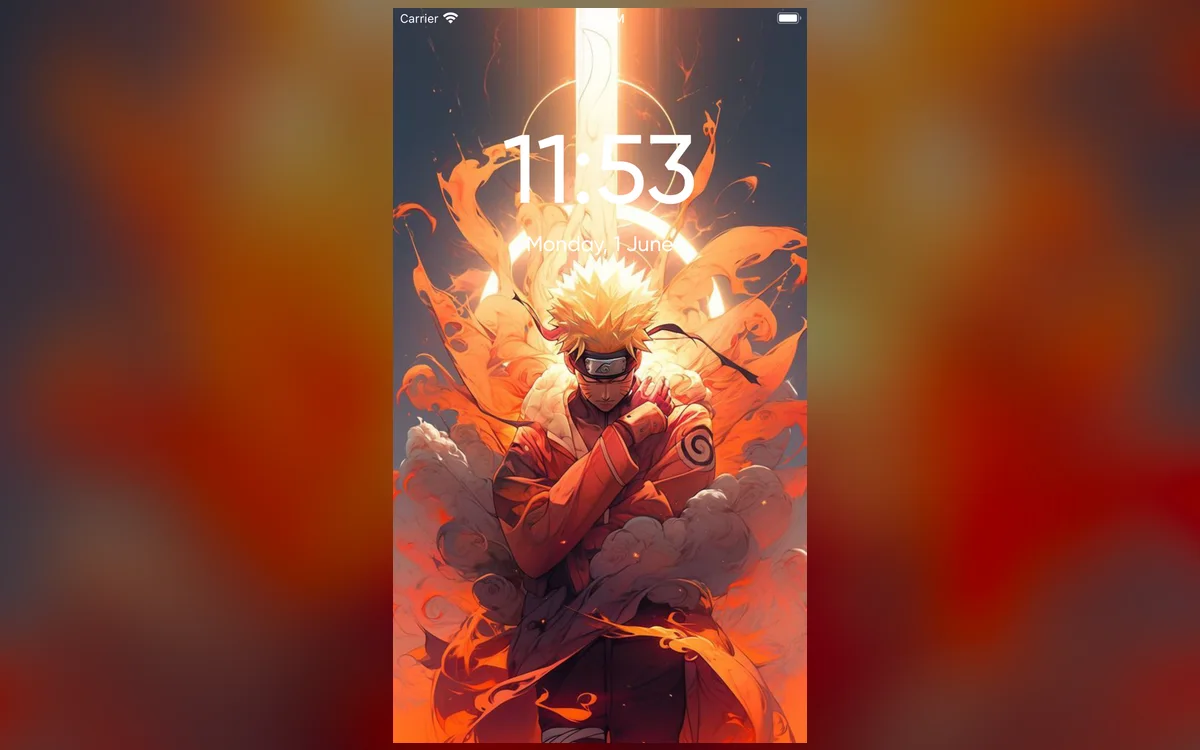
Static wallpapers are fine, but a live one gives your iPhone personality — a gentle animation the moment you tap the screen. The good news is you don’t need any special setup. If you have the right wallpaper saved, it takes about a minute.
What you need first
A live wallpaper on iPhone is really a Live Photo — a short moving image. So before you start, you need one saved to your Photos. The easiest way is a wallpaper app with a ready-made library of animated designs, so you can skip filming your own.
If you’d rather shoot your own, open Camera, make sure the Live Photo icon at the top isn’t crossed out, and record something with slow, continuous motion. Steam off a coffee, leaves moving, traffic at night. Handheld shots of a still scene look like a wobble rather than an animation, so brace the phone against something.
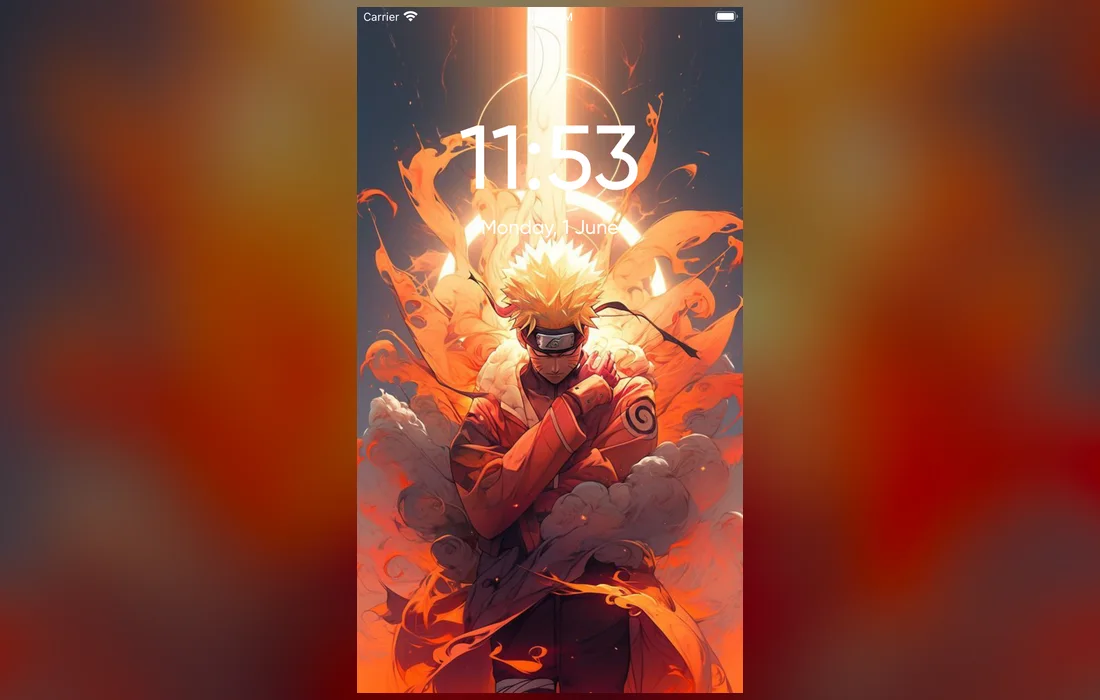
Set a live wallpaper step by step
- Save a live wallpaper to your Photos (from an app like Anime Wallpaper 4K – Live or your camera roll).
- Open Settings → Wallpaper → Add New Wallpaper.
- Tap Live Photo at the bottom, then pick your saved wallpaper.
- Adjust the framing, then tap Add.
- Choose Set as Wallpaper Pair so it applies to your Lock Screen.
You can also do all of this without opening Settings: press and hold your lock screen, tap the + button, and you’ll land in the same picker.
It only moves on the Lock Screen
On iPhone, a live wallpaper animates when you wake or unlock the phone — never on the home screen. So keep your most eye-catching design on the lock screen for the best effect.
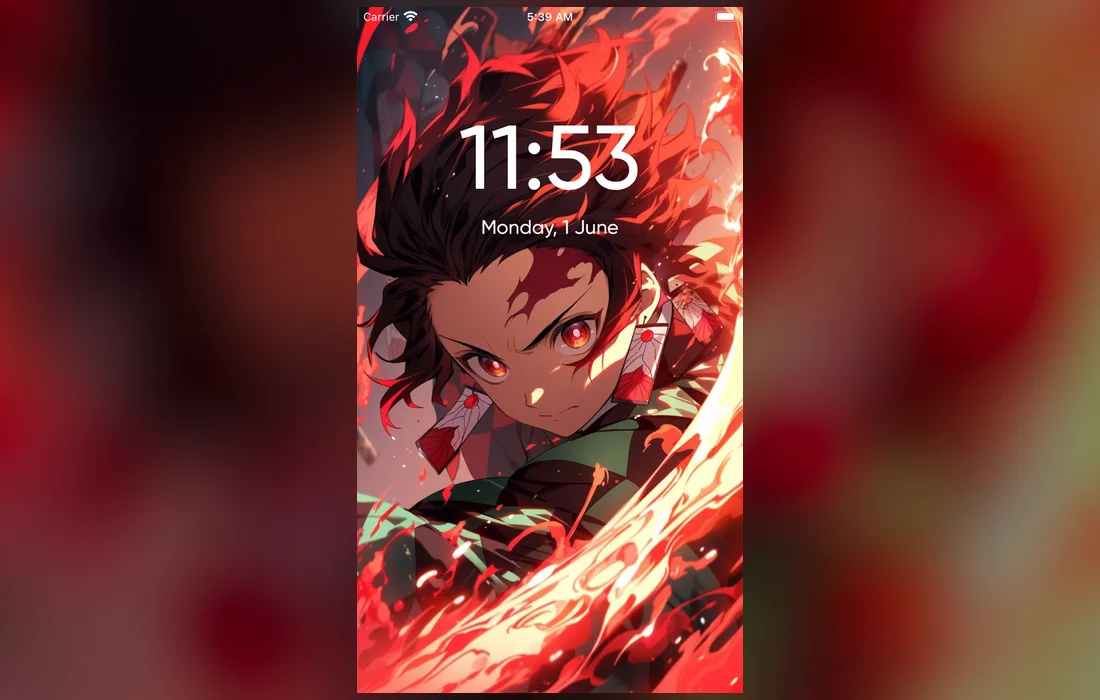
Make it look deliberate, not busy
Motion draws the eye, which means everything else on the screen has to work harder. Two minutes of tuning is the difference between "nice" and "cluttered".
- Set the clock against the calm part. During setup, tap the time to change its font and color. Pick a color pulled from the wallpaper rather than plain white.
- Keep the moving area away from the top. If the animation happens right behind the clock, you’ll find the time genuinely harder to read.
- Cut your widgets down. A live background plus four widgets is too much. Two is plenty.
- Try Depth Effect, then check it. It looks great when the subject frames the clock, and terrible when it swallows it. Toggle it from the customize menu and judge with your real notifications on screen.
Keep it smooth and battery-friendly
- Choose calmer loops if you’re watching your battery — gentle motion uses less power than fast, busy animation.
- Match your clock and widgets to the wallpaper’s colors so everything stays readable.
- Turn off Low Power Mode to see the animation — iOS pauses live wallpapers while it’s on.
One more: build a couple of separate lock screens instead of swapping wallpapers constantly. Press and hold the lock screen, swipe to the end, tap +, and set up a second one. After that you can switch looks with a swipe, and each can carry its own Focus and widgets.
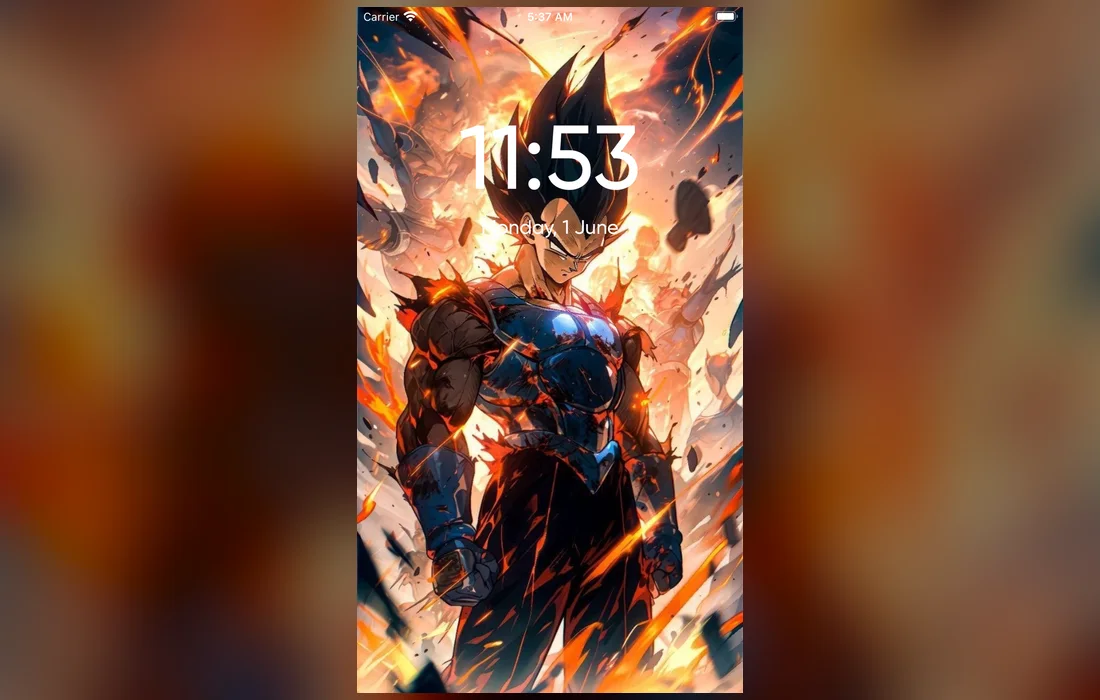
When it won’t animate
- Check Low Power Mode. A yellow battery icon means the animation is paused, not broken. Turn it off in Settings → Battery.
- Confirm it’s actually a Live Photo. In Photos, open the image and look for the LIVE badge in the corner. If it isn’t there, it’s a still and it will never move.
- Make sure Live is set to on, not Off or Loop. Tap the LIVE badge in Photos and choose Live.
- Wake or unlock the phone. That is what plays the motion — it runs for a second or two and then holds on a still frame.
- Re-add it. If it still won’t play, delete that lock screen and add the wallpaper again from Settings → Wallpaper → Add New Wallpaper.
Quick answers
Can I use a video as my iPhone wallpaper?
Not directly. iOS wants a Live Photo, so a regular video has to be converted first. It’s simpler to start from a library of wallpapers already saved in the right format.
Why doesn’t my live wallpaper move on the home screen?
Because iOS doesn’t animate home screen wallpapers at all. The motion is a Lock Screen feature only, which is why it’s worth putting your best design there and something plainer behind your app icons.
Does a live wallpaper use much battery?
Very little. It only plays when you wake the Lock Screen, so it isn’t running while your phone sits in your pocket. Longer, faster loops cost slightly more than short calm ones.
Can I have different live wallpapers for different times?
Not on a schedule, but you can create several lock screens and switch between them with a press and hold plus a swipe. Pair each with a Focus so your work screen and your evening screen look and behave differently.
Where to get great ones
The fastest way to a library of ready-to-set live wallpapers is a dedicated app. Anime Wallpaper 4K – Live is free on the App Store, with hundreds of animated 4K designs you can preview and save in seconds — then follow the steps above and your lock screen comes alive.