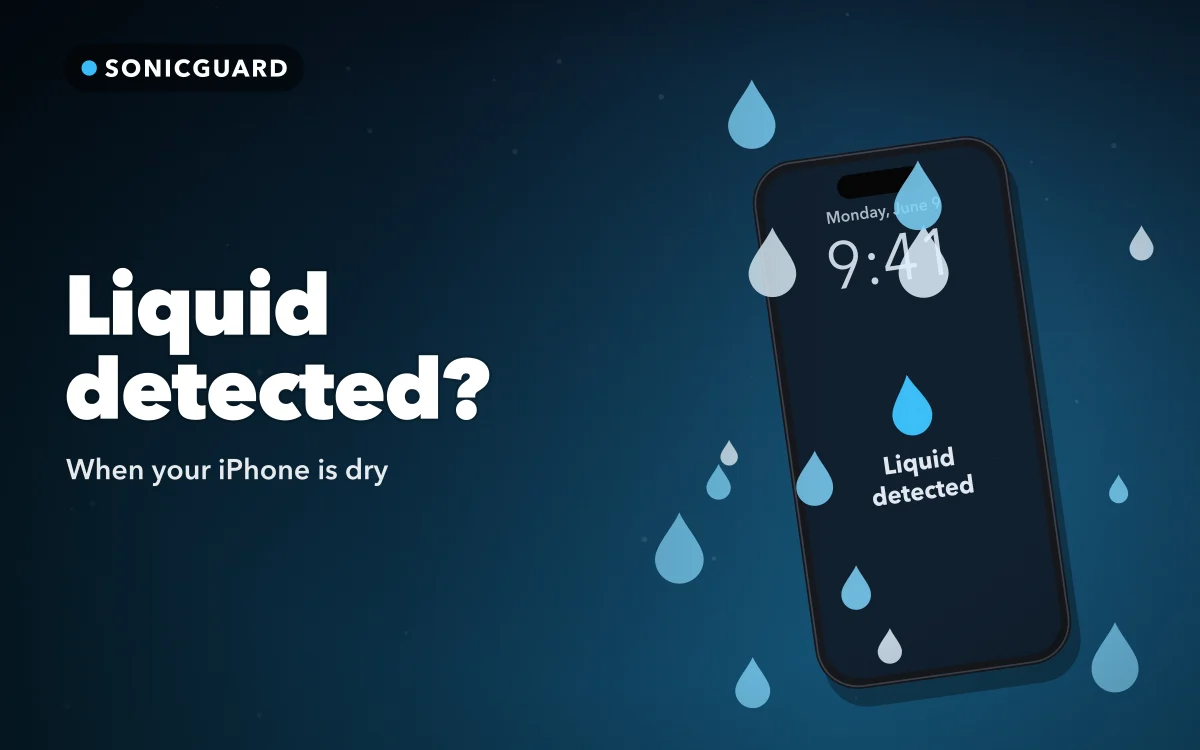
The message appears the moment you plug in: Liquid Detected in USB-C Connector, or on an older iPhone, Charging not available. Your iPhone says liquid is detected, but it is not wet: it feels completely dry, you have not been near water, and the alert keeps coming back.
The useful thing to know is that the alert is a warning about the connection, not a verdict on the phone, and a connection has two halves: the port in your iPhone and the plug on the cable. Working out which half is the problem is most of the job.
What the alert is actually detecting
On iPhone XS, XS Max, XR and later, Apple says the alert means there is liquid in the connector, or on or under the pins of the cable or accessory you plugged in. Until it clears, charging and accessories through the port are unavailable.
The wording depends on the phone and what you connected:
- Liquid Detected in USB-C Connector on USB-C iPhones (iPhone 15 and later). Apple lists it for a charger or accessory connected with a USB-C to USB-A cable and says to disconnect the cable immediately.
- Charging not available when charging through Lightning on iPhone 14 and earlier, or Liquid detected in Lightning Connector with a Lightning accessory that does not charge the phone.
- Liquid Detected when the item plugged in is a USB-C accessory.
iOS holds back because charging through a wet connector can corrode the pins on the port or the cable, and corrosion does not dry out. The alert does not say the phone is water damaged. It says the connection is not dry enough to carry power safely.
Why liquid is detected when your iPhone looks dry
"Looks dry" usually means the outside is dry. The places that matter are smaller.
The cable end. The alert covers the cable's pins as well as the port. A cable that has lain on a bathroom shelf, a kitchen counter or a car floor can bring moisture to a phone that has never been wet.
Steam and condensation. A steamy bathroom, or a move from the cold into a warm room, can leave moisture you would never notice.
Sweat and damp pockets. A gym bag or a rain-soaked jacket puts moisture along the bottom edge, where the port sits.
A splash you missed. A knocked-over drink, rain on the walk home, a wet table. The port faces down, and liquid finds it.
Follow along in SonicGuard Water Eject & Clean
Free on the App Store for iPhone and iPad.
App Store
Apple's drying routine for the connector
Apple's steps reward patience:
- Unplug the cable from the iPhone and from the power adapter or accessory.
- Don't reconnect anything until the phone and cable are completely dry.
- Tap the iPhone gently against your hand with the connector facing down to remove excess liquid.
- Leave it somewhere dry with some airflow.
- After at least 30 minutes, try charging again.
- If the alert returns, keep waiting. Drying can take up to 24 hours, and you can retry during that time.
- If everything is dry and it still won't charge, unplug the adapter from the wall, then reconnect the adapter, cable and phone.
Apple also says don't use an external heat source such as a hairdryer, or compressed air. Don't insert anything into the connector, including a cotton bud or paper towel. And don't put the phone in rice, because small particles of rice can damage it.
Narrow it down: phone, cable or accessory
If the alert keeps returning after a proper wait, start testing to see which item the alert follows.
- Try a different cable. Use a second Apple cable that has been nowhere near water, ideally with a different adapter and wall socket.
- If the alert stops, the first cable is the suspect. Check its pins for discolouration or grime. Apple's guidance: if the alert appears every time with one particular cable or accessory, that item may be damaged, so contact its manufacturer.
- If it follows one accessory, such as a dock, car adapter or battery pack, the same applies.
- If it appears with every Apple cable and accessory you try, the common factor is the iPhone, and Apple says it may need service.
- Look, don't dig. Shine a torch into the port. If lint is packed into the bottom, don't scrape it out with a pin. Let a repair provider clean it.
Run the test after the full 24 hours. Five cables in a still-damp port just give you five alerts and no information.
Emergency Override and wireless charging
If you reconnect the cable or accessory, the alert gives you the option, commonly shown as Emergency Override, to charge through the port anyway. Apple's position is plain: you shouldn't charge a wet iPhone, and the override exists for emergencies.
Why the override is for emergencies only
Charging through wet pins risks exactly the corrosion the alert exists to prevent, and that damage is permanent in a way a wet port is not. The override is for the moment you genuinely need the phone, such as a call you cannot miss on a nearly flat battery. If the situation is only inconvenient, wait it out, and if it is urgent, try a wireless charger first.
That safer route is a Qi-certified wireless charger. Apple says you can still charge with one, and for best results the back of the iPhone should be dry first. Wireless charging does not use the port at all. It also tells you something: if the phone charges normally on the pad, the battery is taking power, and the alert is about the wired connection rather than charging in general.
If the same splash left the speaker sounding thin or crackly, that is a separate problem. Fixing a muffled speaker after water covers it.
Quick answers
Is it safe to tap Emergency Override?
It is not risk-free. If there really is liquid on the pins, charging can corrode them. Use it only when there is no other option, and prefer a Qi-certified wireless charger.
How long does the alert take to clear?
Try again after at least 30 minutes. If it returns, Apple says drying can take up to 24 hours. If it persists after a full day with a dry cable, test other cables to see what it follows.
Will a water-eject app clear the charging port?
No. Water-eject apps, SonicGuard included, work through the speaker and do nothing for the charging port or the alert. SonicGuard plays low-frequency sounds designed to help move trapped water from the speaker, with no guarantee even there. Whether water eject actually works explains what to expect.
Does the alert mean my iPhone is water damaged?
Not on its own. It means liquid was found at the connection, sometimes on the cable rather than in the phone. But if the phone was submerged, or behaves oddly once dry, get it serviced by Apple or an authorised repair provider. Liquid damage isn't covered by Apple's one-year limited warranty, though AppleCare+ or consumer law may give you other options.
Where to get it
SonicGuard Water Eject & Clean is for the other half of a splash: short low-frequency sessions through the built-in speaker, designed to help move trapped water, with the same reference sounds to listen to before and after. It will not touch the charging port.
For the port, the answer is always the same: unplug, dry, wait, then test the cable.