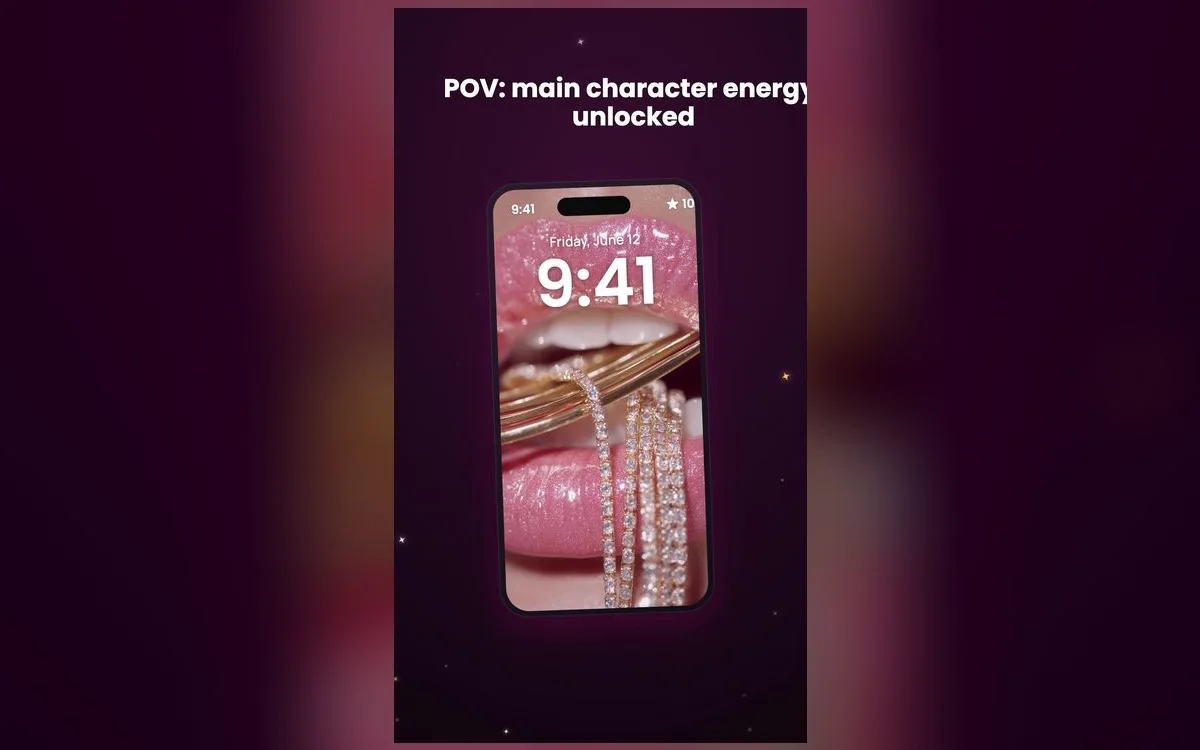
iOS lets you customize your lock screen more than ever — wallpaper, clock font, color and widgets. Put them together thoughtfully and you get a lock screen that looks designed, not default. Here’s how.
The pieces of an aesthetic lock screen
- Wallpaper — a cute design with space at the top for the clock.
- Clock font & color — matched to the wallpaper’s palette.
- Widgets — a small, tidy set (weather, date, a photo) in matching tones.
- Depth effect — let the subject sit in front of the clock for a designed look.
Five combos that always look good
- Soft gradient plus a heavy serif clock. The plainest wallpaper with the boldest font is the most reliable look there is, because nothing competes for the top third of the screen.
- Motif low, clock high. Keep the cute detail — a bow, a cherry, a little bear — below the middle, and the time stays readable all day.
- One photo, no widgets. A single portrait with Depth Effect and the date widget removed. Empty space is what makes it read as deliberate rather than unfinished.
- Checkerboard or gingham with one accent color. Pull the clock color straight out of the pattern instead of leaving it white.
- A seasonal set. Same layout, swapped palette: pastels in spring, warmer tones in autumn. You get a fresh screen without rebuilding anything.
Build it step by step
- Long-press the lock screen → Customize (or + for a new one).
- Pick an aesthetic wallpaper with room for the clock.
- Tap the clock to change its font and color to match.
- Add a couple of widgets in the same palette — don’t overcrowd.
Worth knowing while you’re in there: the row under the clock holds up to four small widgets, the slot above it takes one, and on iOS 18 and later you can swap or remove the two shortcut buttons at the bottom. Tap Add when you’re happy, then choose Set as Wallpaper Pair, or Customize Home Screen if you want something calmer behind your apps.
Less is more
Two or three matching widgets look far more aesthetic than a packed lock screen. Keep it clean and let the wallpaper breathe.
Make sure you can still read it
The prettiest lock screen is useless if you can’t find the time on a sunny street. Two quick checks before you commit:
- Contrast at the top. Hold the phone at arm’s length and glance at it once. If you have to look twice for the time, move the image down or change the clock color.
- Notifications. They stack across the bottom half and will bury a busy design. Go to Settings → Notifications → Display As and pick Count for one tidy number instead of a wall of cards.
Keep it fresh
Make a few lock screens for different moods and swap between them — iOS lets you save several and switch with a long-press.
There are two ways to make the swap automatic. Link a Focus to a screen while you’re customizing it, so your calmer setup appears the moment Work or Sleep turns on. Or choose Photo Shuffle as the wallpaper type, point it at an album of your saved wallpapers, and set it to change hourly, daily or on tap.
When it doesn’t look right
- Depth Effect is greyed out. It needs a clear subject, and it turns itself off as soon as you add widgets under the clock. Remove the widgets, or pick an image with an obvious foreground.
- The wallpaper looks soft or pixelated. The file is smaller than your screen. Save wallpapers made for iPhone rather than pulling images out of a chat, where they get compressed on the way through.
- The subject sits behind the clock. Drag the image with two fingers in the editor. The clock can’t move, so the picture has to.
- You customized and lost your old screen. Editing overwrites. Long-press, tap +, and build variations as separate screens instead of editing the one you like.
Questions people ask
How do I customize my iPhone lock screen?
Long-press the lock screen, tap Customize, then set the wallpaper, clock font and widgets. If you want a brand new screen rather than changes to the current one, tap the + and start from scratch.
Can I save more than one lock screen?
Yes — iOS lets you make several and switch between them with a long-press and a swipe. Each one keeps its own wallpaper, clock style, widgets and linked Focus, so a work screen and a weekend screen can behave completely differently.
Can my lock and home screens look different?
They can. When you tap Add, choose Customize Home Screen and pick a different image, a solid color, or a blurred version of the same wallpaper. A busier lock screen with a calmer home screen is the easiest combination to live with.
Can I use a moving wallpaper?
Yes, if it’s saved as a Live Photo. It animates when you wake or unlock the phone, and it stays still on the home screen, so put your most eye-catching design on the lock screen.
Where to get the wallpapers
Aesthetic, clock-friendly wallpapers live inside Preppy Wallpaper: Pink Cute — a free app with cute, coordinated designs, refreshed regularly. Grab one and build your cutest lock screen yet in minutes.