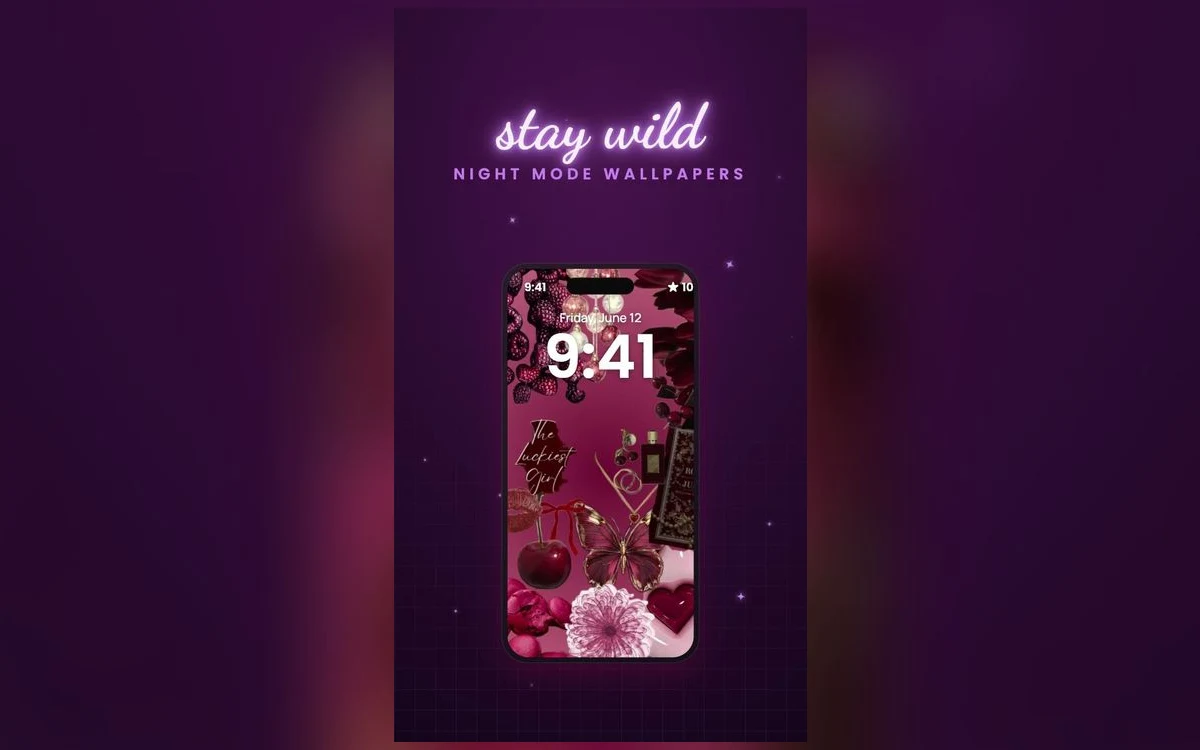
The wallpaper that looked perfect on your phone goes onto your iPad and something is off. The bow is cut in half, the little cherries are the size of apples, and the pretty bit you picked the image for has disappeared past the edge of the screen.
Nothing is broken. A phone and a tablet are different shapes, and the system has to make one image cover both.
Once you understand how that crop actually works, you can pick images that survive the move instead of discovering the problem afterwards.
A phone and a tablet are different shapes
Most current iPhones are roughly twice as tall as they are wide. Most iPads are much closer to square, nearer the proportions of a sheet of paper. No amount of dragging fixes that difference.
When you set a wallpaper, the system scales the image up until it covers the screen, then throws away whatever hangs over the edges. It never squashes the picture, but it does mean something always gets cut.
Take a tall phone wallpaper to a tablet and the image is too narrow, so it gets scaled up until it is wide enough. The top and bottom are then far taller than the screen and get trimmed away, leaving you with a magnified band from the middle. Go the other direction and a wide tablet image on a phone loses its left and right edges instead.
Whatever is in the centre survives
Every automatic crop works outward from the middle, so the centre of an image is the only part guaranteed to appear on every screen. When you are choosing a wallpaper to use across devices, look at the middle third and ask whether that alone is still a nice picture. If the good part is a detail in a corner, it will not make the trip.
The parts of a phone screen you cannot really use
On the lock screen the top area belongs to the date, the clock and, on recent iOS versions, a row of small widgets. The bottom holds a pair of shortcut buttons and the bar for swiping home. On newer models there is also a camera cutout at the top that sits over the image.
The home screen is worse, because the whole surface is covered in app icons in a grid, with the dock across the bottom and small page dots above it. Only the gaps between icons are visible, so anything detailed simply becomes noise behind them.
That leaves a usable band in the middle and lower-middle of a phone screen. Phone wallpapers put their subject there for exactly this reason, which is also why the same file looks oddly low or badly cropped elsewhere.
Follow along in Preppy Wallpaper: Pink Cute
Free on the App Store for iPhone and iPad.
App Store
A tablet has to work in two orientations at once
This is the part that surprises people. A tablet uses one image and crops it differently depending on which way you are holding the device. A wallpaper that looks well composed in portrait can lose its top and bottom completely when you turn the tablet sideways.
There is no way around it other than choosing images that tolerate both crops. Patterns do this better than pictures. A repeating design of small checks, stripes, bows or fruit has no single subject to cut in half, so it looks intentional at any crop and any size.
Tablets also spread app icons much further apart than phones do, so more of the wallpaper is visible between them. A busy design that was fine behind a tight phone grid can look cluttered on a larger screen. Plainer is usually the right call on the bigger device.
Android screens are not one shape either
Android phones vary far more than iPhones do. Screens run from fairly square to extremely tall, foldables have two different displays, and every manufacturer ships its own launcher with its own crop behaviour.
Many Android home screens also scroll the wallpaper sideways as you move between pages, so the system wants an image wider than the screen and crops harder to get one. That is why a wallpaper saved from one device often looks zoomed in on another.
The practical answer is the same everywhere. Start from the largest version of the image you can get, keep the important part central, and expect the edges to be sacrificed.
What to look for when you are choosing
Give the subject room. An image where a single motif sits in the middle with plenty of plain background around it will crop well on anything, because the background is what gets eaten first.
Avoid text or captions near the edges, since those go first and half a word looks like a mistake rather than a style. Be wary of tight compositions where every corner is doing something.
For a set across two devices, pick a pattern for the tablet and save the detailed designs for the phone. Preppy Wallpaper: Pink Cute is organised by palette, so a plain version and a busier one from the same colour family still look related.
Quick answers
Can I use iPhone wallpapers on an iPad?
You can, and often it works fine, but expect the top and bottom to be cropped away because the iPad screen is much wider in proportion. Images with a centred subject and a simple background handle it best. Anything with detail near the top or bottom edge will lose it.
What size should a wallpaper be for my device?
Bigger than your screen rather than smaller. Scaling an image down looks clean, while scaling one up makes it soft and blocky. You do not need to match your model's exact resolution, so download the largest version offered and let the system handle it.
Why does my wallpaper look zoomed in?
Almost always because the image was narrower or shorter than the screen in one direction, so the system enlarged it until it covered everything. Some iOS versions also add a slight motion effect that shifts the wallpaper as you tilt the phone, which needs extra margin and pushes the zoom further. That setting's availability has changed across versions.
Can I use these wallpapers on an Android phone?
The app itself is an App Store download, so it runs on iPhone and iPad. If you want the same image on an Android device, save it to your photos and move it across the way you would move any picture, then crop it yourself in the Android wallpaper picker.
Where to get it
If you want a library that is already sized properly for iPhone screens, Preppy Wallpaper: Pink Cute sorts its designs by palette and style so you can grab a matching plain and patterned pair in one go.
Choose the image for the biggest screen you own, and crop down from there.