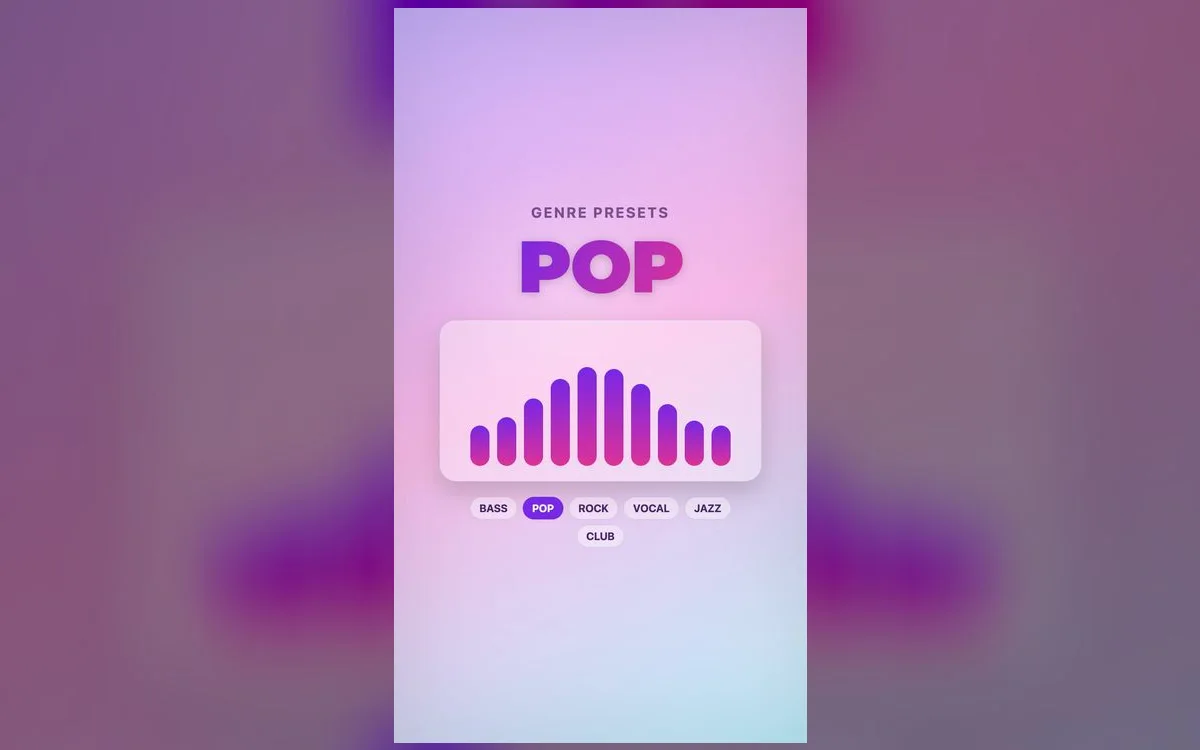
iOS has a hidden EQ (Settings → Music → EQ), but it’s a short list of fixed presets with no fine control. To actually shape your sound — more bass, clearer vocals, crisper highs — you want a real equalizer you can tune band by band.
Here’s how to get the best out of it.
Why the built-in EQ isn’t enough
- It only applies to the Music app, not other players or videos.
- It’s preset-only — you can’t nudge a single frequency.
- There’s no bass boost beyond the fixed "Bass Booster" option.
A dedicated equalizer works across your audio and lets you dial in exactly the sound you want.
What each slider is actually doing
Before you drag anything, it helps to know what lives where. On a 10-band EQ the sliders roughly break down like this:
- 32–60Hz — sub-bass, the part you feel more than hear. Great on headphones, mostly wasted on a phone speaker.
- 125–250Hz — the punch of a kick drum and the body of a bass line. This is where "more bass" usually belongs.
- 400–500Hz — the mud zone. If a mix sounds boxy or congested, cut here before you boost anything else.
- 1–3kHz — vocals and snare attack. Small lifts bring the singer forward; large ones get harsh fast.
- 6–12kHz — cymbals, air and detail. A gentle lift adds sparkle, too much adds hiss.
The best EQ starting points
Use these as a base, then tweak to taste:
- Bass lovers — lift the 60Hz and 150Hz bands a few dB, keep mids flat.
- Vocals & podcasts — gently raise 1–3kHz so voices sit forward.
- Bright & crisp — add a touch at 8–12kHz for detail without harshness.
- Balanced everyday — a subtle smile curve: small lifts at the low and high ends.
Dial in bass without wrecking the mix
The common mistake is boosting bass until one song sounds impressive, then discovering everything else sounds like a paper bag. Do it this way instead:
- Pick a reference track you know well — one with a clear bass line and a vocal, not a wall of synths.
- Start from flat, not from a preset. You want to hear each change on its own.
- Raise 60Hz by about 3dB and stop. Listen for whether it added weight or just rumble.
- Add a smaller lift at 125Hz for punch. Bass you can hear on a small speaker lives here, not at 32Hz.
- Cut 400Hz slightly if voices now sound buried. A cut often does more than another boost.
- Drop the overall level if anything crackles, then re-check the same track from the start.
Test on the gear you actually use. A curve tuned on AirPods will sound bloated in a car, and a car curve will sound thin through the phone speaker.
Tips for great sound
- Boost bass in moderation — a little adds punch; too much muddies everything.
- Match the EQ to your gear — earbuds and car speakers need different curves.
- Save your setup so every track plays the way you like.
Louder and better, safely
An equalizer paired with a volume boost makes quiet tracks come alive. Raise the level gradually and ease off if the sound distorts — clean and loud always beats loud and crackly.
Three problems, three fixes
- It crackles on the loud parts. That’s clipping, not a broken speaker. Pull your bass boost down a couple of dB and lower the source volume before raising the boost again.
- Everything sounds muffled. Too much low end, or a mid cut you forgot about. Flatten 400Hz to 1kHz first and rebuild from there.
- Songs are wildly different in volume. Turn on Settings → Music → Sound Check, which evens out track-to-track levels so you aren’t reaching for the volume every song.
Keep your ears in one piece
Bass hides loudness. A heavy low-end curve feels comfortable at a level that is genuinely loud, which is how people end up with ringing ears after a commute. Turn on Settings → Sounds & Haptics → Headphone Safety, leave the loud-audio reduction enabled, and check the Hearing section in the Health app now and then. If you find yourself pushing the volume higher every week, that’s a signal to back off, not to boost more.
Quick answers
What EQ setting gives the most bass?
A lift around 60Hz and 125Hz with the mids left flat. Push much past a few dB and you trade punch for mush, so add gradually and stop at the point where the bass line is clear rather than overwhelming.
Does an EQ make my iPhone louder?
Indirectly. Boosting a band raises that part of the signal, so the track feels fuller. A volume boost raises everything, which is why the two work best together at moderate settings.
Why does my bass disappear on the phone speaker?
Small speakers physically can’t reproduce sub-bass. Save the deep curve for headphones and use a punchier 125–250Hz lift when you’re playing out loud.
Should I use Apple’s EQ and an app at the same time?
No. Stacking two EQs doubles up the same frequencies and invites distortion. Set Settings → Music → EQ to Off and do your shaping in one place.
Where to get it
A full 10-band equalizer, bass boost and ready-made presets are all built into Volume Booster: Bass EQ — free on the App Store. Load a track, pick a preset, fine-tune the bands, and hear your iPhone the way it was meant to sound.