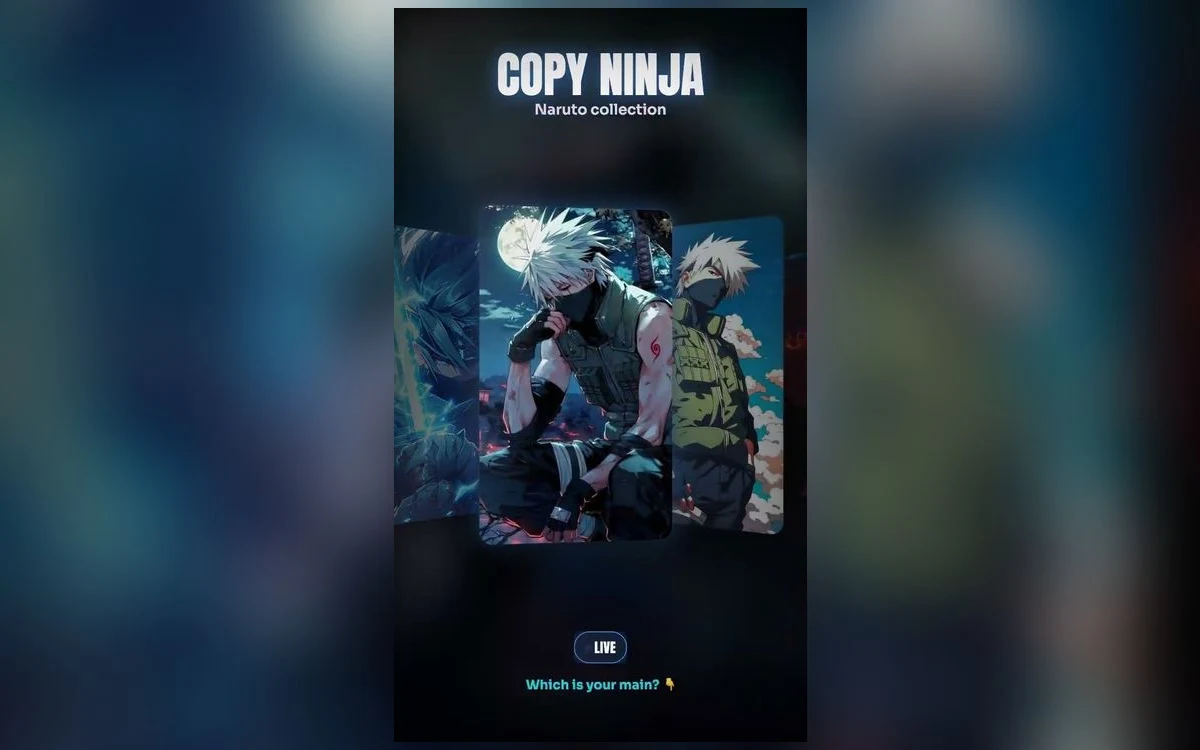
Kakashi Hatake is one of the most requested wallpaper subjects in Naruto, and one of the hardest to set well. The character is defined by a covered face, a tilted headband and a single visible eye, which means almost everything that makes the design recognisable sits in the top third of the frame — exactly where the iPhone clock lands.
Here is how to pick a Kakashi image that survives the lock screen, and what to do when the good ones get buried behind the time.
The framing problem, and the fix
Portrait Kakashi art usually centres the face. On a phone that puts the Sharingan and the headband behind the clock, and you end up with a wallpaper that reads as a grey blur with a chin.
Three shapes get around it. Off-centre portraits, where the face sits to one side and the empty half takes the clock. Waist-up or full-body compositions, where the head is small enough to sit below the time. And the reverse approach, where a very dark upper third is the point and the clock reads cleanly over near-black.
The third one is worth knowing about, because Kakashi art leans dark by default. A night-forest or ANBU-era piece often has an almost-black top already.
What to look for in the art itself
The Sharingan is the anchor. If the red eye is the brightest single point in the frame, the composition works from a metre away, which is the distance most lock screen glances happen at.
Watch the mask edge. Cheap upscales soften the line between the mask and the skin, and on a large iPhone screen that soft edge is the first thing that gives away a low-resolution source.
Lightning is the other signature. Chidori and Raikiri pieces carry a lot of high-frequency detail, and detail is what compression destroys first. A Chidori wallpaper that looked sharp as a thumbnail can turn into blue mush at full size, so check it on the phone before committing.
Live versions and what actually moves
Kakashi suits motion better than most characters, because the effects do the moving rather than the face. Drifting lightning, a flicker in the eye, leaves crossing the frame behind a still portrait.
Set expectations on what iOS does with that. Nothing on the lock screen loops continuously in the background. Motion happens at moments: when you wake the phone, when you unlock it, when you tilt it. A live Kakashi wallpaper plays for a second or two on wake and then holds. If you were expecting constant lightning, that is not a setting you have missed. Live vs static anime wallpapers covers the trade in more detail.
The home screen never animates on iPhone, on any version, so a live wallpaper is a lock screen decision only.
Save it straight from the app
The motion in a Live Photo lives in a second file paired with the still, and most ways of moving a picture around break that pairing. Sending it to yourself in a chat app, uploading and re-downloading it, or running it through an editor that does not understand Live Photos all leave you with a flat image. Save from the wallpaper app directly into Photos and set it from there.
Making the depth effect work
Depth effect lifts a subject in front of the clock, and Kakashi is a good candidate because the silhouette is distinct: spiked hair, a clear shoulder line, high contrast against the background.
It needs a real separation between subject and background to trigger. Busy collage art and full-bleed effect pieces usually will not lift, because iOS cannot decide what the subject is. A clean portrait against a simple background almost always will.
Two things switch it off without telling you. Adding widgets under the clock disables depth on that lock screen. And if the subject covers too much of the clock, iOS drops the effect rather than hiding the time. Pull the image down slightly with a drag and it often comes back. There is a full walkthrough in the depth effect guide.
Pairing the home screen
A dark Kakashi lock screen next to a bright default home screen looks unfinished. In the wallpaper editor, tap Customise, open the Home Screen panel, and pick Blur. It keeps the colour of the lock screen image and drops the detail that fights with app labels.
If you want the portrait on both, use a different crop rather than the same file. Push the face to the lower third on the home screen so icons sit over the dark area instead of over the eye.
Quick answers
Why does my Kakashi wallpaper look soft on a Pro Max?
The source is smaller than the screen. iOS scales anything undersized up to fill, and upscaling shows most in fine lines like the mask edge and hair spikes. Start from an image at least as large as your display.
Can I have a different Kakashi wallpaper for work and evenings?
Yes. Make more than one lock screen, then link each to a Focus. Touch and hold the lock screen while unlocked, tap plus to add another, and connect a Focus from the editor. The phone swaps them for you.
Does a live wallpaper drain the battery?
Only slightly, since it is a still image most of the time and moves at specific moments. Brightness and screen-on time cost far more. A dark wallpaper does genuinely help on an OLED iPhone, because black pixels stay unlit.
The Sharingan looks orange, not red.
Check whether True Tone or Night Shift is warming the display, and look again in a neutral light. Both shift reds noticeably on a dark image.
Where to get it
Anime Wallpaper 4K – Live has a Naruto section with both still and live Kakashi pieces, previewed in a phone-shaped frame so you can see where the clock will fall before you save anything.
Pick two: one dark enough for the lock screen, one you can blur for the home screen. That pairing does more for how the phone looks than any single image.