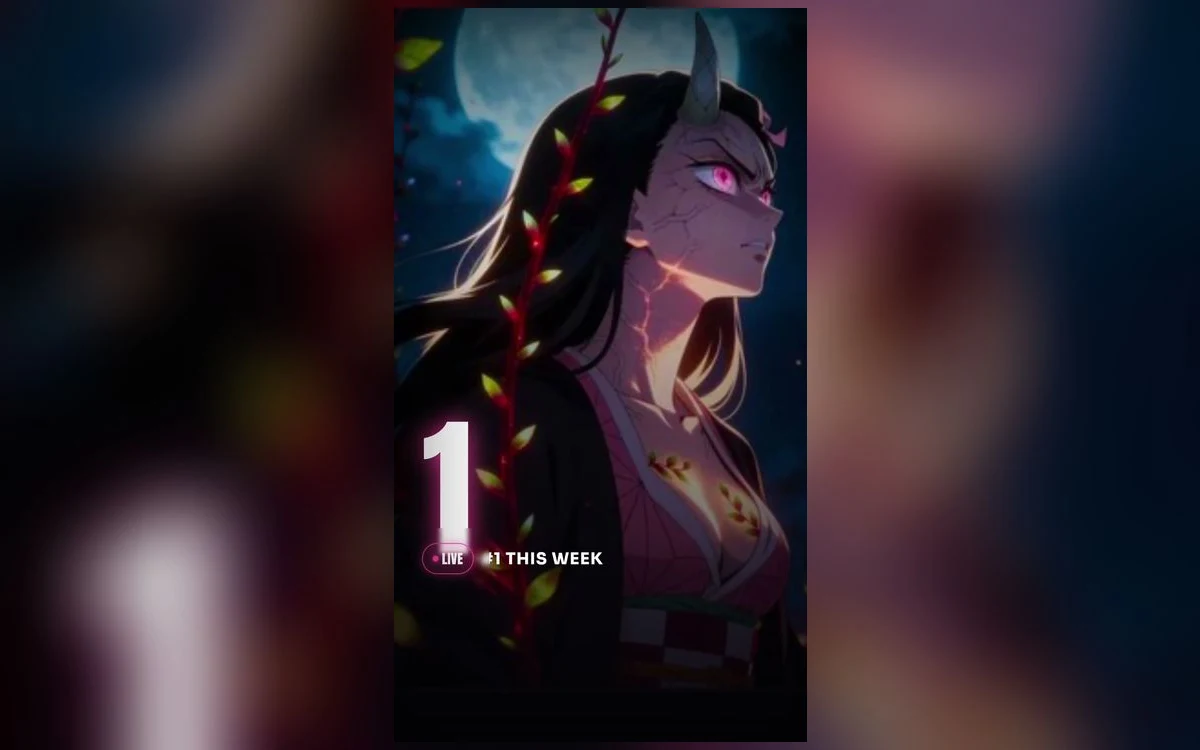
Nezuko Kamado is the most-searched Demon Slayer wallpaper subject, and the one where the choice of image matters most. She appears in two visually different modes: the muzzled, sleeping form in the pink checkered kimono, and the awakened demon with the horn, the vine markings and the glowing pink eyes.
They behave completely differently on a lock screen. Here is how to pick between them and set either one properly.
The two Nezukos, and which one holds up on a phone
The kimono version is soft: pink, cream, black checks, gentle light. It photographs beautifully and then disappears behind a white clock. Almost every complaint about a Nezuko wallpaper looking washed out traces back to setting a bright pastel piece and leaving the clock white.
The awakened version is the opposite. Deep blue and black backgrounds, a bright pink eye, glowing vine lines on the skin. The contrast is already there, so the clock sits over it without a fight.
If you want the kimono art specifically, look for night scenes rather than daylight ones. The same character against a dark forest or a moonlit sky keeps the pink without losing the top of the frame.
Set the clock colour before you judge the image
This is the step people skip. In the wallpaper editor, tap the time and you get a font and colour picker. On a pink or cream image, a deep charcoal or black clock is legible where white is not.
Judge the wallpaper only after that change. A lot of images that look unusable at first are fine once the clock stops competing with them.
Where the depth effect helps, and where it fails
Depth effect lifts the subject in front of the clock, and it is genuinely good on Nezuko portraits because the hair silhouette is distinctive. A head-and-shoulders piece against a plain background lifts almost every time.
It fails on the busy compositions, and Demon Slayer art is full of those: petals, flame patterns, water effects, full-frame colour washes. iOS needs to identify one clear subject, and a collage gives it nothing to hold on to.
Two other things turn it off quietly. Widgets under the clock disable depth on that lock screen. And when the subject covers too much of the time, iOS drops the effect instead of hiding the clock. Dragging the image down a little usually brings it back. The depth effect guide has the full sequence.
Live versions: what moves and when
Nezuko suits animation, because the motion tends to be ambient rather than character animation: drifting petals, a flicker in the eye, vines pulsing.
What iOS does with it is narrower than people expect. Nothing on the lock screen loops continuously in the background. Motion happens at moments, on wake, on unlock, on tilt. A live Nezuko wallpaper plays briefly and holds. On the Pro models from iPhone 14 onward, the always-on display shows a dimmed static version while the phone is idle, so nothing plays there either.
The home screen has never animated on iPhone, on any version, so live wallpaper is a lock screen choice only.
Keep the Live badge intact
The motion in a Live Photo lives in a second file paired with the still, and most ways of moving a picture around break that pairing. Sending it through a chat app, uploading and re-downloading, or editing it in something that does not understand Live Photos all produce a flat picture. Save from the wallpaper app straight to Photos, then check for the Live badge in the corner before you set it.
Cropping without losing the face
Most Nezuko art is drawn wider than a phone screen, so iOS crops it to fill and you lose whatever sits at the edges. Pinch to zoom and drag to reposition in the editor, and check two things while you do it.
The eyes should not sit directly under the clock. Even with depth effect on, the safest place for a face is the middle third, with the top third left to the time and the bottom third clear for the flashlight and camera buttons.
The horn, in the awakened art, is the detail people crop off by accident. It sits high and to one side, and pushing the face down to clear the clock often pushes it out of frame entirely. If it disappears, zoom out slightly rather than dragging further.
The tilt effect also crops a little at every edge, because it needs room to move. An image that fits perfectly when static can lose a few pixels once it is set.
Matching the home screen
Pink is the hardest colour to carry onto a home screen, because app icons are already saturated and the two fight.
Blur is the reliable answer. In the editor, tap Customise, open the Home Screen panel and choose Blur. You keep the colour and lose the detail that makes labels hard to read.
If you want more than that, a single dark piece from the awakened set works better as a home screen than any of the pink ones, and the pair still reads as the same character. For a full setup, matching wallpapers to your app icons goes through the icon side.
Quick answers
Why does the pink look duller on my phone than in the preview?
True Tone and Night Shift both warm the display, and pink shifts noticeably under either. Look at the wallpaper once in a neutral light before deciding the image is wrong.
Can I use one of these as a Focus wallpaper?
Yes. Build a second lock screen and link it to a Focus in the editor. Many people keep the calm kimono art on a Sleep or Personal Focus and the awakened art on the default screen.
My live wallpaper stopped moving after an update.
Check Reduce Motion in Settings, Accessibility, Motion, and check whether Low Power Mode is on. If both are off, open the picture in Photos and confirm the Live badge still says Live rather than Off.
Is there more Demon Slayer beyond Nezuko?
Yes, and the wider set is covered in the Demon Slayer roundup, including the Hashira and the breathing-style effect pieces.
Where to get it
Anime Wallpaper 4K – Live carries both Nezuko modes in still and live form, and previews each one in a phone-shaped frame so you can see where the clock lands before saving.
Set the clock colour first, then choose. It changes which images are worth having.