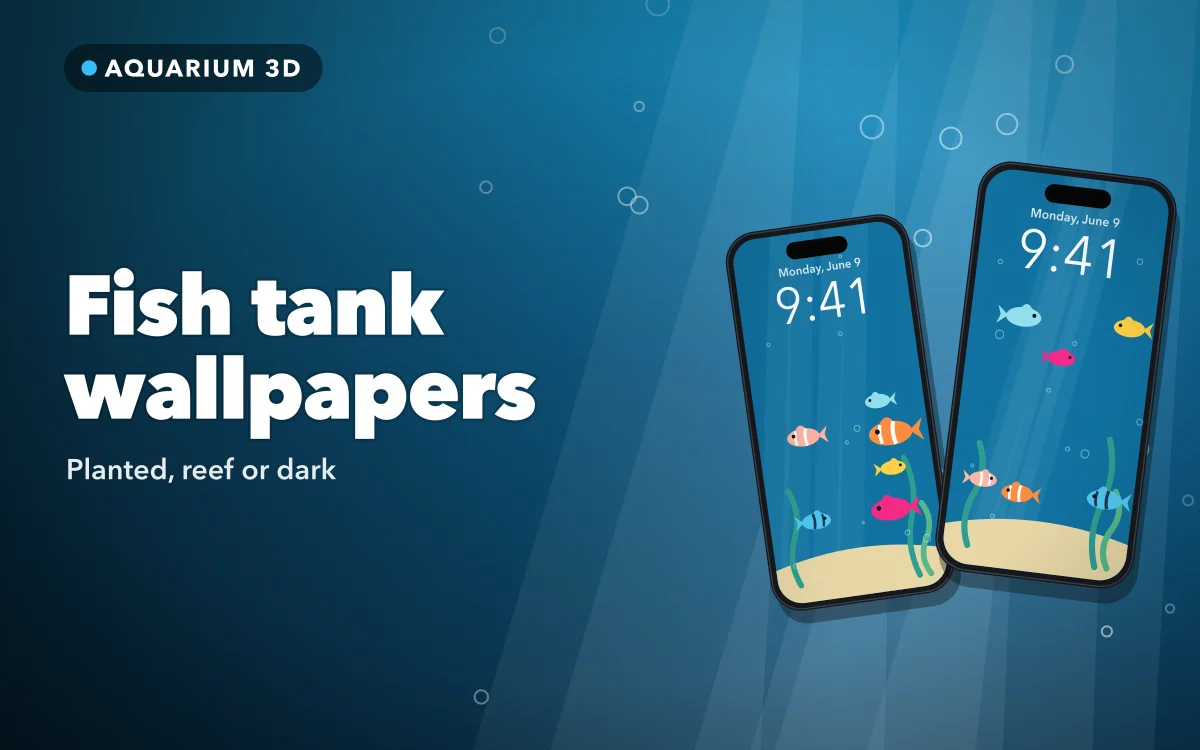
A fish tank is not the same subject as the open ocean. It has edges, a floor and a light fixed above it, and everything inside it has been arranged by somebody. That gives fish tank wallpapers a cosier, more domestic feel than a coral reef or a deep-sea scene, as though your phone had a small window into a quiet room.
It also creates a few practical quirks. Here is how the main styles of tank differ, and how to fit one around your clock and icons.
Four kinds of tank
The planted tank. Lush greens, soft stems and small shoaling fish. This is the calmest style and the easiest on the eyes. Green and deep brown are comfortable colours, and they leave room for a white clock if the top of the image is not too bright.
The aquascape. A planted tank taken further, arranged like a miniature landscape. The Japanese aquarist Takashi Amano did much to popularise this "nature aquarium" look, and one well-known layout, called iwagumi, is built around carefully placed stones. These designs are spare and elegant, with a lot of open space, which makes them excellent for phones.
The reef tank. Bright corals and vivid saltwater fish under blue light. It is the most colourful choice, and also the busiest. It looks stunning on a Lock Screen, but it can get in the way on a Home Screen.
The night tank. A dark room with a softly lit tank, or a tank lit only in deep blue. It is the most comfortable style to look at in low light, and a white clock is easy to read over it.
If you check your phone in bed, start with the night tank. If you want something that feels alive during the day, try a planted tank.
The problem at the top of the tank
Here is something you will notice as soon as you try one of these on your phone. A real aquarium is usually lit from above, so the brightest part of the picture is often the top band of the water. That is exactly where your date and time sit.
There are a few easy ways to deal with this:
- Choose dimmer lighting. Images with soft light, or with the light fixture out of frame, give the clock a much easier time.
- Drag the picture down. Touch and hold your Lock Screen, tap Customize, then pinch and drag so that a darker area sits behind the time.
- Change the clock colour. Tap the time while customising. A deep navy clock can look very natural against a bright aquarium.
Check the bottom of the screen as well. The gravel or sand usually sits there, along with the flashlight and camera buttons. That is a useful coincidence, since nothing important gets hidden.
Follow along in Aquarium 3D: Live Wallpapers
Free on the App Store for iPhone and iPad.
App Store
Front view or a corner
Most tank images are shot straight on, so they look a little like a framed picture. That is often a good thing, but a wide tank is a poor fit for a tall phone. Your iPhone has to crop away the sides, and you can lose most of the scene.
Look for one of these instead:
- A tall, narrow section of a tank. Long plant stems or a single column of fish fit a portrait screen naturally.
- A view without the glass. With no visible frame, the crop will not look awkward.
- A corner view. An angled shot adds depth and gives you a natural diagonal line to work with.
Tall fish help here too, as our guide to tropical fish wallpapers explains. And koi fish wallpapers take the opposite approach, with a view straight down into the water.
What a live fish tank does on an iPhone
A live tank wallpaper does not run all day like a screen saver. It moves on wake, unlock and tilt for a second or two, then holds still, and nothing loops. The Home Screen does not animate at all. Small movements look best here, such as a fin ripple or a few rising bubbles. If yours stays still, read why a live wallpaper may not move.
Using it on your Home Screen
Water is a useful background for icons, as long as most of it is empty. The main thing to avoid is a brightly lit reef directly behind your apps, because the colours will compete with the icons and their labels.
A few things tend to work well:
- A dark or softly lit tank with the fish kept low.
- The same image with the blur option switched on when you customise the Home Screen.
- A plain blue background taken from the same palette.
Our guide to aquarium wallpapers for your Home Screen has more detail on this.
Keeping a tank on display
Some people go further and turn an old phone into a little aquarium on a shelf. It is a nice way to reuse a retired device, and a dark night tank is especially good for it, because it does not light up the whole room. Note that an iPhone will not keep a live wallpaper moving all the time, so a display like this usually runs the scene full-screen inside an app. Using an old iPhone as an aquarium display walks through the setup.
If you are wondering about the power used by a moving wallpaper on your main phone, our battery guide covers what actually happens.
Quick answers
Which fish tank wallpaper is easiest to read?
A dark or softly lit tank works best, since a white clock has plenty of contrast. Brightly lit tanks often need a darker clock colour or a different crop.
Why does my fish tank wallpaper look cut off?
Most tanks are wide, and a phone screen is tall, so your iPhone has to crop the sides. A tall image or a view without the glass frame avoids this.
Will a live fish tank keep moving on my Lock Screen?
No. It moves briefly on wake, unlock and tilt, then holds still. The Home Screen does not animate.
Where to get it
Aquarium 3D: Live Wallpapers has live aquarium and underwater wallpapers, with realistic 3D fish tanks and coral scenes in 4K. You can preview a live wallpaper on your Lock Screen before you save it, and keep your favourites together.
Choose the tank for the room you will be in when you look at it.