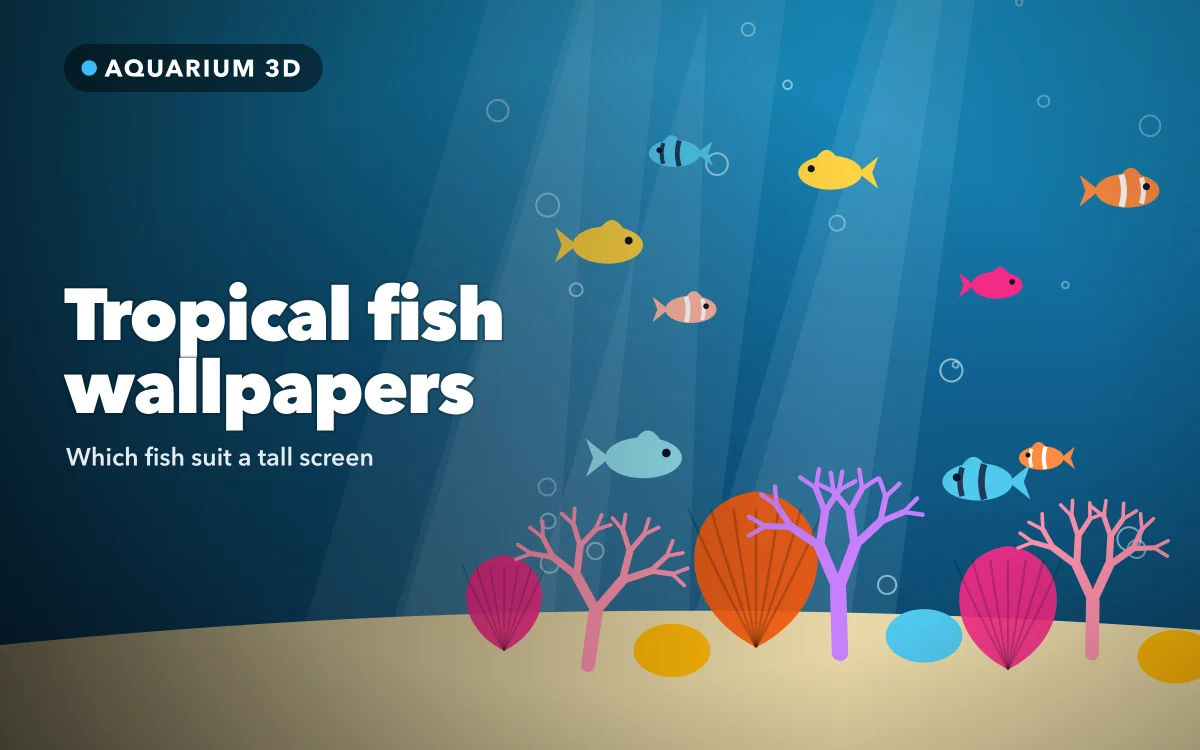
Fish are mostly horizontal, and phones are entirely vertical. That simple mismatch explains why so many beautiful photos of fish look disappointing as wallpapers. Crop a wide photo to fit a tall screen, and you may be left with a head, some blue water and half a tail.
Tropical fish offer a way round this, because they come in such a wide range of shapes. Some are almost as tall as they are long, and others look best in a group, which turns them into a pattern. Choosing by shape first is the quickest route to a wallpaper that fills the screen properly.
Six fish that work on a tall screen
Angelfish: tall and elegant. Freshwater angelfish have a flat, triangular body with long fins above and below, which makes them taller than most fish. A single one can sit comfortably in the middle of a phone screen with no awkward cropping. Their silver and black stripes also look sharp against dark water.
Bettas: pure colour. A betta's long, flowing fins make it one of the most dramatic fish you can put on a screen, in deep reds, blues and purples. Bettas also look natural alone, so the art tends to have one clear subject. On a black background, the effect is striking, and it suits an OLED display.
Seahorses: naturally vertical. A seahorse may be the perfect phone subject, because its body already stands upright. It rarely needs cropping, and its slim shape leaves water on either side. A small one near the bottom can leave the entire top of the screen for your clock.
Clownfish: instantly familiar. Orange with white bands, clownfish are easy to spot and are usually shown among sea anemones. The anemone gives you a colourful base at the bottom of the screen, with the fish above it. Orange stands out strongly against blue water.
Blue tangs: bold and bright. A vivid blue body with a yellow tail makes this one of the most colourful fish around. Blue tangs are fairly round, so they fit a narrow frame more easily than long, slim species.
Neon tetras: a living pattern. A single tetra is tiny, but a school of them makes a glowing band of blue and red. Because the group forms its own shape, it can flow diagonally or vertically through a tall frame, leaving dark water around it.
Why schools work so well
Schools deserve special attention, because they solve the shape problem completely. Dozens of small fish no longer look like animals that have to fit a frame. They read as a pattern with movement in it, and a pattern can be any shape you like.
There is a further benefit. A curved line of fish draws your eye through the screen, and it can curve around your clock instead of passing behind it. Look for images in which the group is densest in the lower half and thins out towards the top.
Be careful with scattered fish spread evenly across the whole image, though. They can look busy behind text, and they make icons on the Home Screen harder to read.
Follow along in Aquarium 3D: Live Wallpapers
Free on the App Store for iPhone and iPad.
App Store
Colour and the clock
Tropical fish are colourful, but the water is what your clock sits on. Deep blue and black water are the easiest backgrounds, and a white clock reads clearly on both. Bright turquoise water looks lovely in holiday photos, but it gives a white clock less contrast.
To set your image, touch and hold your Lock Screen, tap Customize, then pinch and drag the picture. These small changes make a big difference:
- Move the brightest fish below the time. Orange and yellow pull the eye, so keep them away from the numbers.
- Tap the time to change its colour. A pale blue clock can look more natural than pure white on underwater art.
- Check for detail behind your notifications. Coral and anemones are beautiful, but they are also busy, and they work best low down in the image.
If you like the darker look, our deep-sea wallpaper guide goes further, and the coral reef guide covers the more colourful end of the range.
What a live fish wallpaper really does
A live wallpaper will not turn your iPhone into a fish tank that runs all day. It moves on wake, unlock and tilt for a second or two, then holds still, and nothing loops. Your Home Screen does not animate either. The clips that work best have a small, natural movement, like a fin ripple, instead of a fish swimming across the screen. Check why a live wallpaper may not move if yours stays still.
Avoiding the common crop problems
A few habits will help you avoid the disappointing results mentioned above:
- Start with a vertical image. Wide photos lose too much when they are cropped to fit a tall screen.
- Do not zoom in too far. Enlarging a fish also enlarges every pixel, so a small file will soon look soft.
- Leave room around the subject. A fish pressed against the edge of the frame feels cramped, especially once rounded corners and the clock are in place.
- Check the bottom of the screen. Your flashlight and camera buttons will sit on top of whatever is there.
Pairing it with your Home Screen
Colourful fish can make your icons harder to find, so a calmer image often works better here. Our guide to aquarium wallpapers for your Home Screen has more detail, but three simple options usually work:
- A plain, dark blue picture from the same underwater palette.
- The same wallpaper, with the blur option turned on when you customise the Home Screen.
- An image with very sparse fish, kept low, so your icons have open water behind them.
Quick answers
Which tropical fish looks best on an iPhone?
Angelfish, bettas and seahorses are the easiest, because their shapes suit a tall screen. A school of neon tetras also works well, since it can flow through the frame as a pattern.
Why does my fish photo look bad as a wallpaper?
Most fish photos are wide, so your iPhone has to crop heavily to fill the screen. Starting with a vertical image at high resolution solves most of this.
Do live fish wallpapers keep moving?
No. They move briefly on wake, unlock and tilt, then hold still. The Home Screen stays still too.
Where to get it
Aquarium 3D: Live Wallpapers has live underwater wallpapers, with 3D-style fish tanks, coral reefs, jellyfish, koi and deep-sea scenes. You can preview a live wallpaper on your Lock Screen before you save it.
Choose the shape first, and the crop becomes much easier.