You know exactly which GIF you want. You can picture the face, the beat, the little pause before it loops. So you type a word, get a grid of nearly-right options, scroll, try another word, and ninety seconds later you give up and send "haha" instead.
That happens because finding a GIF is not much like searching for a video. You are searching for a feeling, and most of us type as though we were describing a scene we half remember from a film.
The fix is a handful of habits: better search words, knowing when to stop searching and start browsing, and keeping the few you use constantly within reach. None of it takes long to learn.
Search the feeling, not the scene
The most common mistake is typing what is happening on screen. You remember a man in a suit slowly turning around, so you type "man turning around" and get nothing useful.
GIF libraries are labelled by what a clip means, not by what it depicts. That labelling comes from how people actually use each clip, so the words that work are emotional ones: awkward, relieved, unimpressed, panicking, smug, exhausted, obsessed.
Try it once and the difference is obvious. "Man turning around" returns a mess. "Suspicious" returns the clip you meant, plus twenty that would also work.
Two or three words, not a sentence
Long queries narrow the results down to almost nothing. Short ones give you a grid you can scan in a second.
Two words is usually the sweet spot: one for the emotion, one to shape it. "Nervous laugh" beats "nervous". "Fake smile" beats "smile". "Tired monday" beats typing out how you actually feel about Monday.
If a two-word search returns nothing, drop the second word rather than adding a third. Widening works better than narrowing almost every time.
The words that quietly work
There is a small vocabulary that reliably returns strong results, because these are common reactions, so the libraries tend to be deepest there.
For agreement: nodding, exactly, facts, applause. For disagreement: side eye, nope, blinking, not buying it. For celebration: dancing, victory, jumping, confetti. For despair: crying, walking away, hiding, chaos. For plain acknowledgement, which is more useful than it sounds: shrug, thumbs up, salute, fine.
Face words are worth knowing too. "Raised eyebrow", "wide eyes", "unimpressed face", "slow blink". A face is the whole payload of most reaction GIFs, so naming one is a strong signal.
When search fails, browse instead
If two searches have not landed, stop typing. A third attempt rarely helps, and you are now spending longer on the reply than the conversation is worth.
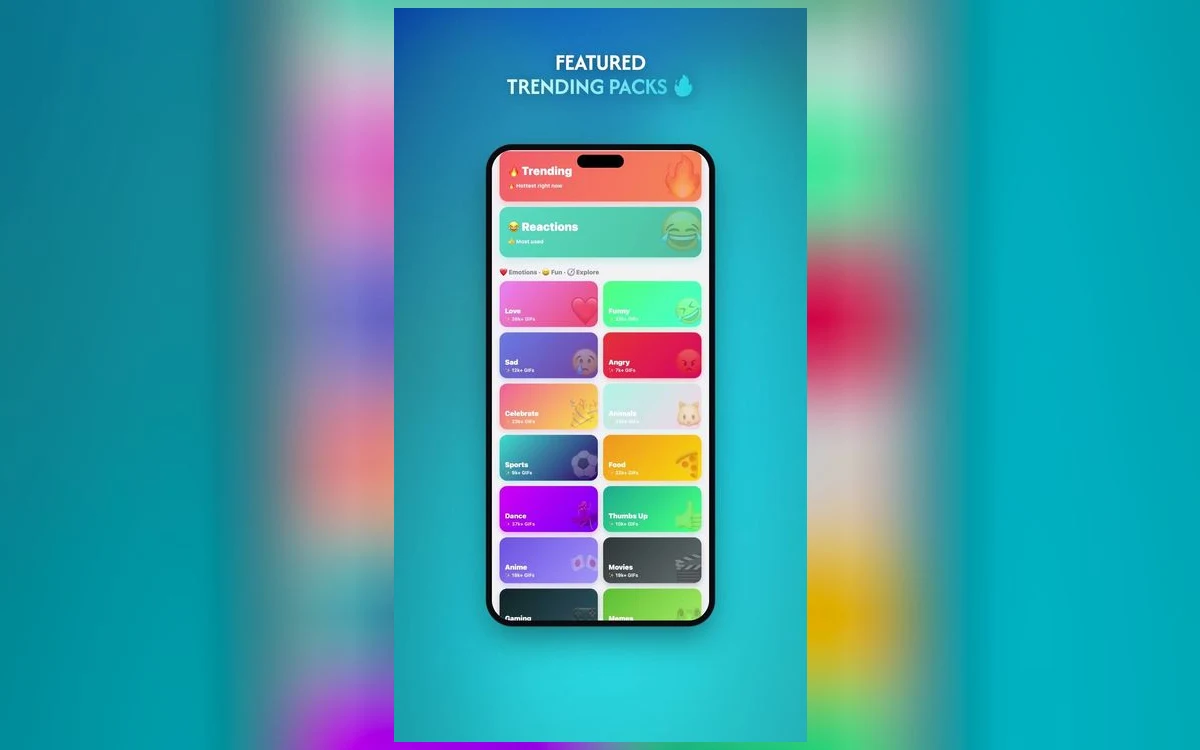
Browsing works better than most people expect, because you are no longer trying to match a picture in your head. You are choosing from what exists. Categories such as reactions, trending, animals, sports and memes are organised around how people reply to messages in the first place. In GIF Keyboard: Memes & Emoji those categories sit next to the search box, so switching from hunting to browsing takes one tap.
The trending row is worth a glance too. It is the quickest way to find something your group has not already seen a hundred times.
Judge the loop before you send it
A GIF that looks perfect in the grid can land badly in the chat, and it usually comes down to two things.
Length is the first. Anything over about three seconds asks the reader to wait, which is the opposite of what a reaction should do. Short loops read as instant. Long ones read as a video you have been made to watch.
Text burned into the image is the second. Plenty of GIFs arrive with a caption already on them. That is excellent when the caption is the joke and awkward when it contradicts what you meant. Read the words in the thumbnail before you tap send, because you cannot edit them afterwards.
Save the six you actually use
Almost everyone reuses the same small set: one laugh, one shrug, one shock, one celebration, one eye-roll, one "I have no words". Mark those as favourites so they load at the front of the keyboard, and most replies stop needing a search at all. Add one new favourite a week and retire one, and the set stays fresh without ever getting unwieldy.
Getting GIFs into every app, not just Messages
Some apps have a GIF button built in and some do not. That inconsistency is part of why searching feels slow, because the method changes depending on where you happen to be typing.
A system-wide keyboard removes the problem. You add it once in Settings under General, then Keyboard, then Keyboards, and switch to it with the globe key while typing. From then on the same search box appears in Messages, WhatsApp, Instagram, email or a notes field, because it is a keyboard rather than a feature of one app.
Third-party keyboards usually ask for Full Access, which is what lets them load GIFs over the network. The prompt's wording differs between iOS versions, so read what the app explains before turning it on.
Quick answers
Why can't I find the GIF I'm picturing?
You are probably searching by what the clip shows rather than what it means. Switch to the emotion behind it, in one or two words, and the same clip usually appears in the first row. If two attempts fail, browse a category instead of typing a third search.
What are the best search words for reaction GIFs?
Emotion words and face words. Try shrug, side eye, nervous laugh, unimpressed, celebrating, panicking, exhausted, applause. Those labels are widely applied, so those corners of a GIF library tend to be well stocked and the results are the strongest.
How do I add a GIF keyboard on iPhone?
Install the app, then open Settings, go to General, Keyboard, Keyboards, and add the new keyboard from the list. Tap or hold the globe key to switch to it while typing. Menu names have shifted slightly between iOS versions, so if the labels look different, search Settings for "Keyboards".
Should I just send whatever is trending?
Trending is useful for finding something the group has not seen yet, but it is no substitute for fit. Check that the tone actually matches the message, because a popular GIF dropped into the wrong moment lands worse than a plain reply.
Where to get it
GIF Keyboard: Memes & Emoji is a free iPhone keyboard with search, browsable categories and saved favourites, so the same GIFs are available in every app you type in. You can get it here: GIF Keyboard: Memes & Emoji.
Save your six regulars once, and most replies stop being a search at all.