Texting is half words, half reactions. A perfectly timed GIF lands a joke, softens bad news, or wins the group chat when a plain "lol" won’t. The problem is that iOS doesn’t ship with a great GIF picker built in — so the fastest way to always have the right reaction ready is a dedicated GIF keyboard you can open inside any app.
Here’s how to set one up and get the most out of it.
Why a GIF keyboard beats copy-paste
Hunting for a GIF in your browser, saving it, then switching back to your chat is slow. A GIF keyboard lives right next to your normal keyboard, so you can:
- Search reactions by mood or keyword without leaving the conversation.
- Send memes, emoji and GIFs from one place, in any app.
- Keep your recent and favorite reactions a tap away.
How to add a GIF keyboard on iPhone
Setting it up takes about a minute:
- Download GIF Keyboard: Memes & Emoji from the App Store.
- Open Settings → General → Keyboard → Keyboards → Add New Keyboard.
- Choose the GIF keyboard from the list.
- Tap it again and turn on Allow Full Access (this lets it send GIFs in your chats).
- In any chat, tap the 🌐 globe icon on your keyboard to switch to it.
Tip: "Allow Full Access" is safe and required
iOS asks for Full Access so the keyboard can send images into your messages. It’s a standard permission for every GIF keyboard — without it, GIFs can’t be inserted.
What Full Access is actually doing
iOS shows a stern-sounding warning on that switch, so it’s worth knowing what it means. A third-party keyboard normally runs in a sandbox with no network access. GIF search needs the network to load results, and inserting an image means handing a file to the other app. Full Access unlocks both. Every GIF keyboard asks for it, and you can revoke it any time in Settings → General → Keyboard → Keyboards. The sensible habit is the usual one: install keyboards from developers you’re willing to trust, and switch it off for ones you stop using.
Switching without the globe-key shuffle
If you have three keyboards installed, tapping the globe cycles through all of them, which gets old fast. Press and hold the globe key instead and pick the one you want straight from the list. You can also change the order: go to Settings → General → Keyboard → Keyboards, tap Edit, and drag the GIF keyboard up so it’s the first switch away. And if you’re running a keyboard you never use, delete it there too. Two keyboards plus emoji is the sweet spot.
Reactions worth keeping on hand
A good keyboard is organized by feeling, not just search. These are the categories people reach for most:
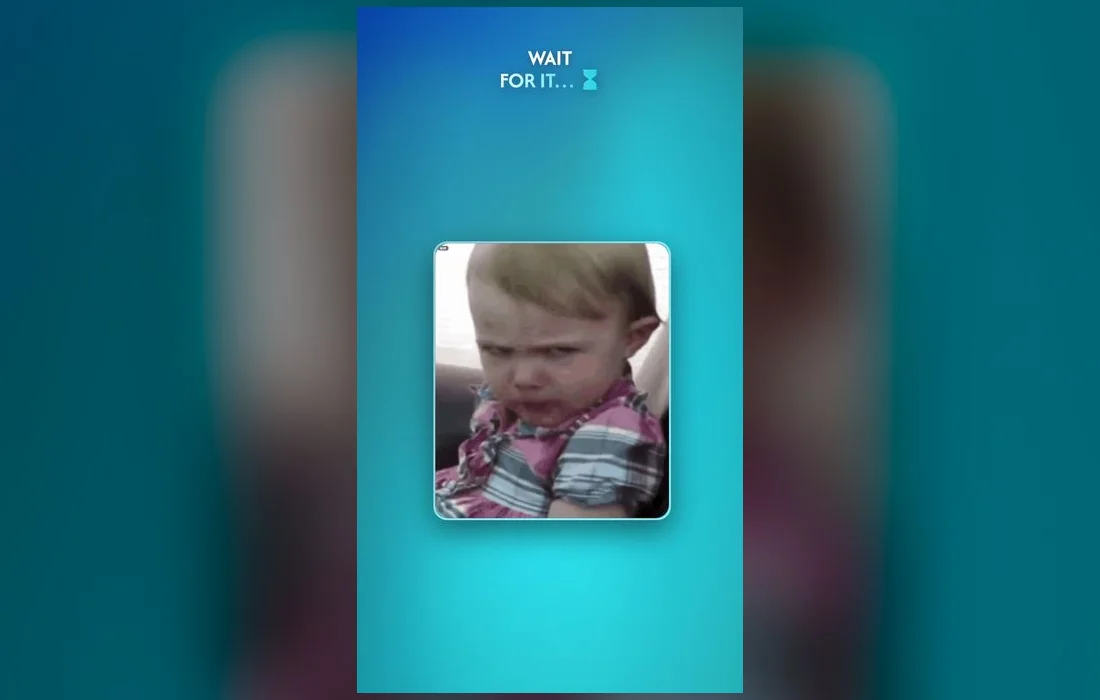
- "Wait for it" — build-up reactions for a story or a plot twist.
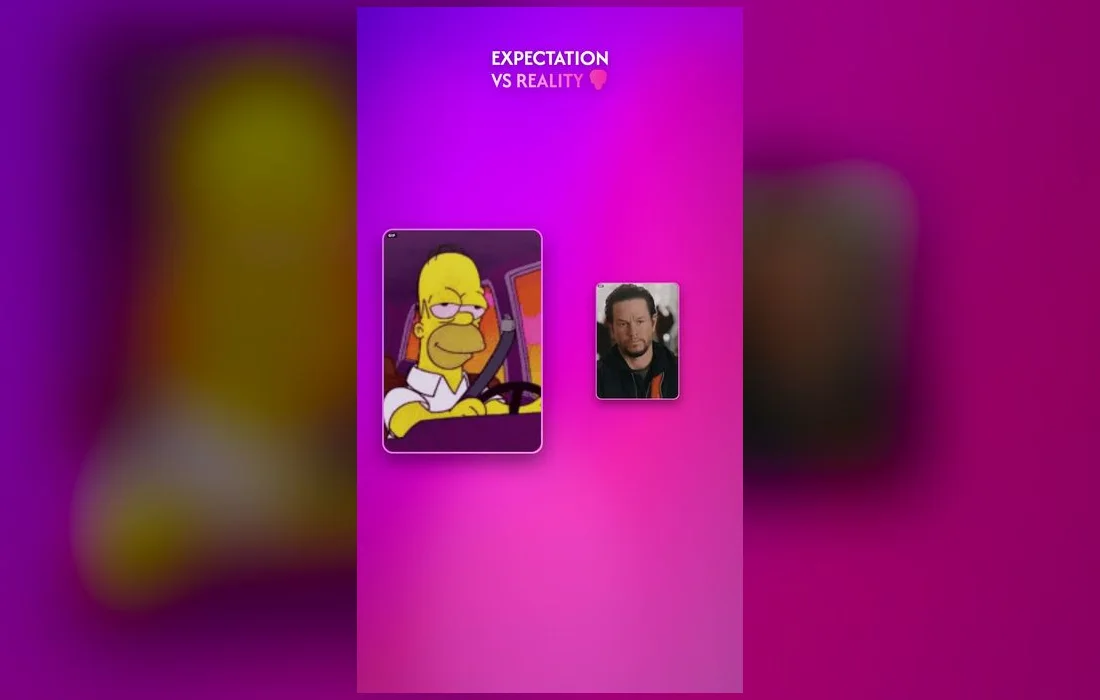
- Expectation vs reality — the classic two-part joke.
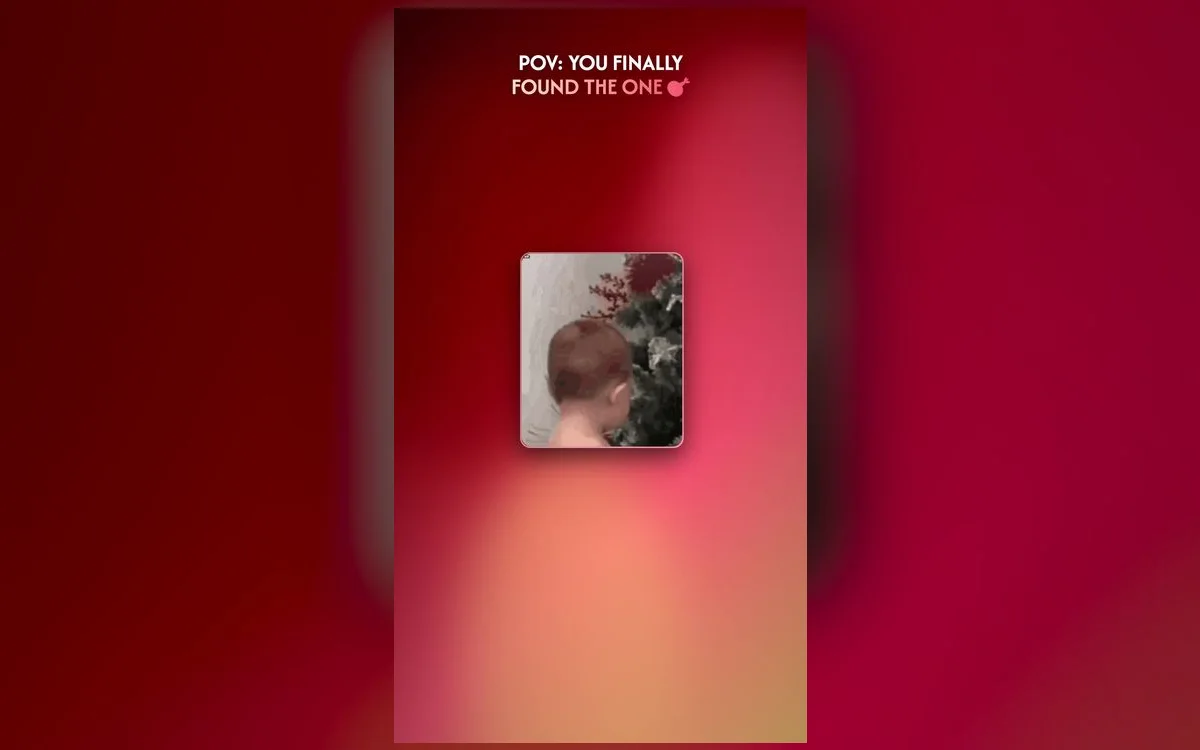
- POV reactions — when you found *the one* meme for the moment.
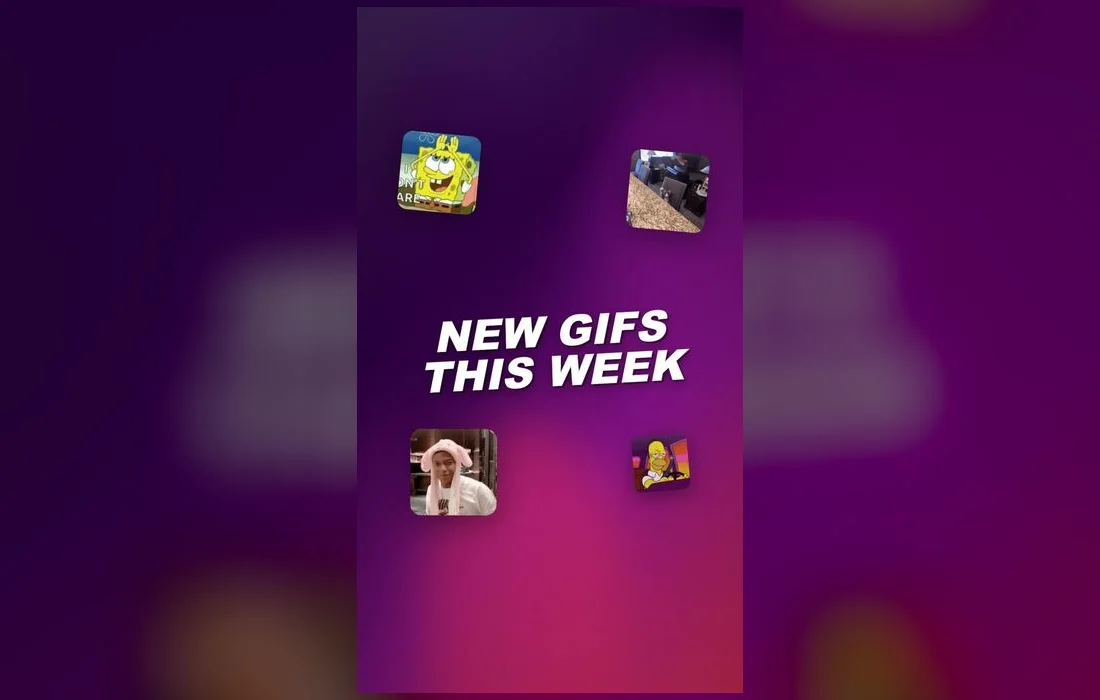
- Fresh drops — trending GIFs updated every week so you’re never late to a format.
Get the most out of it
- Favorite your top reactions so they’re one tap away in the group chat.
- Search by emotion ("shocked", "crying laughing", "eye roll") rather than a specific show — you’ll find something faster.
- Mix GIFs with emoji for a reaction that feels like *you*.
- Keep the clip short. A one or two second loop reads instantly; a ten second scene makes people wait for the joke.
- Check what it looks like small. A GIF full of tiny text is unreadable in a chat bubble.
When something goes wrong
- No search results. Full Access is off. Go back to Settings → General → Keyboard → Keyboards, tap the keyboard, and switch it on.
- The keyboard won’t appear. Close the chat app completely and reopen it. Newly added keyboards often don’t show until the app restarts.
- The GIF sends as a still image. Some apps flatten animations on upload. Messages, WhatsApp and Discord keep the motion; feed posts frequently don’t.
- It pastes instead of sending. Tapping a GIF copies it in some apps, so you land in the message field with a paste ready. Hold the field and choose Paste, then send.
Setup questions
Does a GIF keyboard replace my normal keyboard?
No. It sits alongside the standard keyboard and you switch between them with the globe key. Your usual typing, autocorrect and dictation are untouched.
Does it work in WhatsApp, Instagram and Discord?
Yes — anywhere a text field accepts a system keyboard. That covers Messages, WhatsApp, Instagram DMs, Discord, Snapchat and most chat apps.
Do GIFs use a lot of data?
Each one is small, but browsing loads a lot of previews at once. On a tight plan, do your scrolling on Wi-Fi and send from favorites when you’re out.
How do I remove a keyboard later?
Settings → General → Keyboard → Keyboards, swipe left on it, and tap Delete. That removes the keyboard and its permission immediately.
Where to get it
Everything above works with GIF Keyboard: Memes & Emoji — a free iPhone keyboard with a huge, weekly-updated library of GIFs, memes and emoji you can send in any app. Add it once, allow access, and you’ll always have the perfect reaction ready.