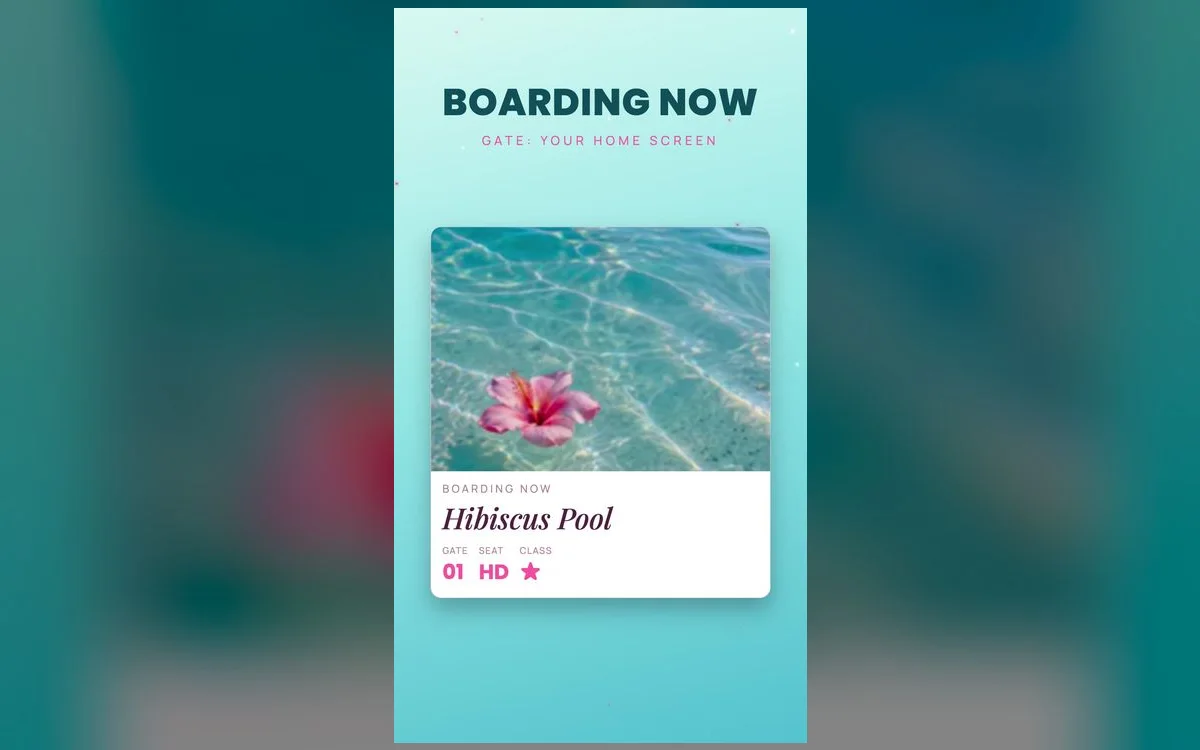
Back-to-school season is the perfect excuse for a phone refresh. A cute, clean wallpaper sets the tone for a fresh start — and a little motivation on your lock screen never hurts when you’re staring down a syllabus. Here’s how to get set up.
Back-to-school wallpaper vibes
- Fresh & aesthetic — clean pastels and cute motifs for a tidy new-semester feel.
- Motivational — a subtle quote or calm design to keep you focused.
- Cozy autumn — warm tones as the season turns.
- Preppy & organized — coordinated colors that feel put-together.
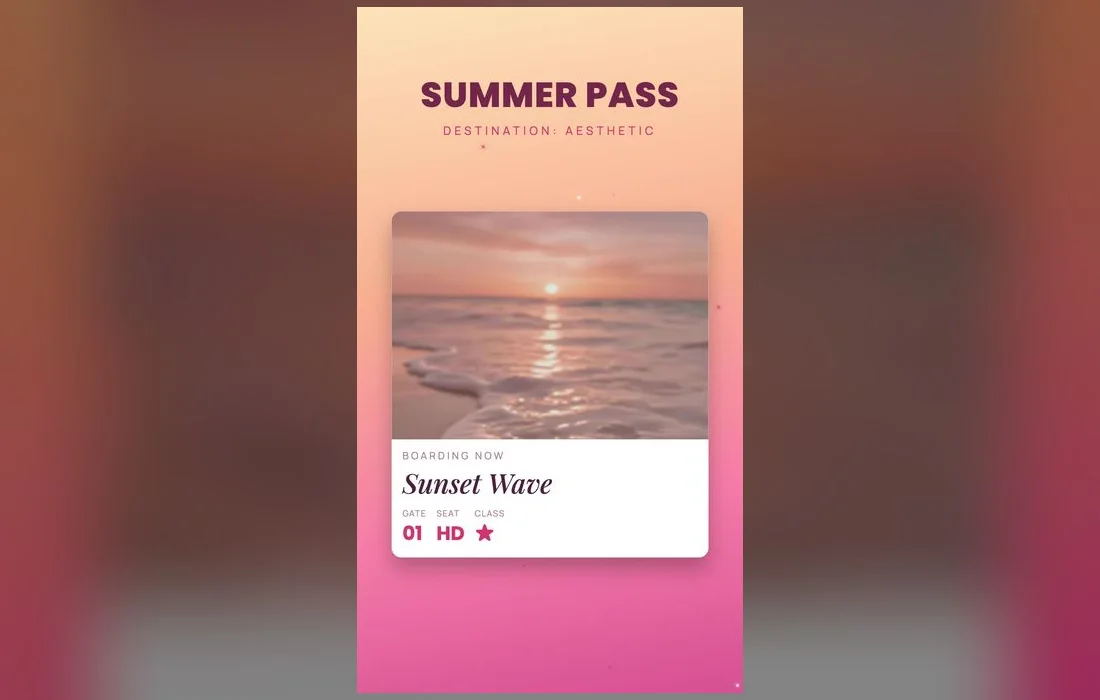
What makes a school wallpaper survive past week two
A wallpaper you glance at forty times a day between classes has a different job than one that just looks nice in a grid. Three things separate the keepers from the ones you swap out by the second week of the semester.
- Empty space at the top. The clock, the date and any Lock Screen widgets live in the upper third. If that area is busy with pattern or lettering, you end up squinting at your own phone in the back of a lecture hall.
- Something calm through the middle. Notifications stack across the center of the Lock Screen. A soft gradient or a plain pastel there keeps message previews readable when six group chats go off at once.
- A palette, not a picture. Two or three colors that repeat — cream and sage, pink and white, tan and cocoa — read as intentional. A busy collage reads as clutter, which is the opposite of the point in September.
Follow along in Preppy Wallpaper: Pink Cute
Free on the App Store for iPhone and iPad.
App Store
Set up for a focused semester
- Pick a lock screen that feels fresh and motivating.
- Match your home screen and keep your most-used apps on one tidy page.
- Add a calendar or reminders widget so your schedule is a glance away.
- Choose a calm palette — a clean setup genuinely helps you focus.
Function meets cute
Back-to-school is the one time cute and practical really pay off together — a calendar widget on a cute wallpaper keeps you organized and happy.
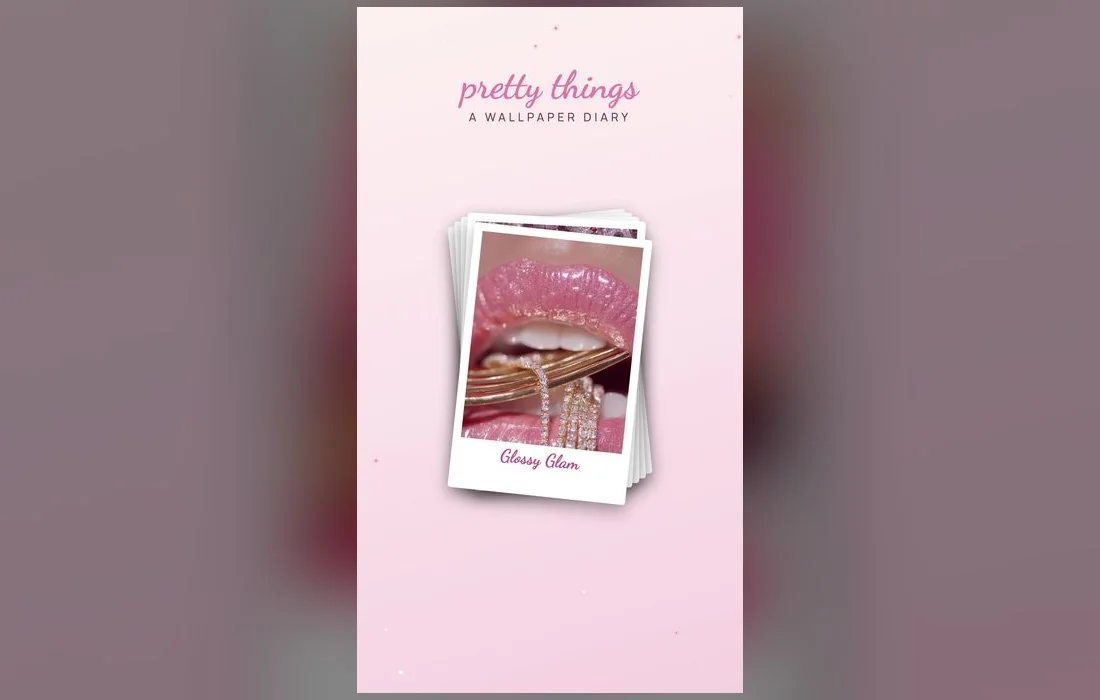
Set it in seconds
- Open Preppy Wallpaper: Pink Cute and browse fresh / aesthetic styles.
- Preview a wallpaper, then save it.
- Settings → Wallpaper → Add New Wallpaper, pick it, set for lock and home.
Give your study hours their own Lock Screen
iOS can attach an entire Lock Screen to a Focus, so your quiet study wallpaper only shows up when you’re actually working:
- Go to Settings → Focus, tap +, and set up a Focus (a custom one named Study works well).
- Under Customize Screens, tap Choose below the Lock Screen preview and select the wallpaper you saved.
- Tap the area under the clock and add a Calendar or Reminders widget so your next class is visible without unlocking.
- Turn on a schedule so the Focus starts automatically during your study block.
From then on, touch and hold the Lock Screen while the phone is unlocked and swipe to move between your fun wallpaper and your study one. Your notification rules switch with it, which is the part that actually protects your focus.
When it doesn’t look right
- The image is zoomed in. While customizing, pinch to zoom out and drag to reposition before you save. iOS crops to fill by default, so tall designs lose their edges.
- The clock is hard to read. Tap the time during customization and change the font, weight or color instead of hunting for a whole new wallpaper. A lighter clock rescues most dark designs.
- The home screen looks foggy. That’s the default blur. Tap Customize → Home Screen and switch to Photo if you want the design sharp behind your icons.
- Colors look warmer than the preview. True Tone shifts tones under indoor lighting. Check it in daylight before deciding a wallpaper is wrong.
Quick answers
What wallpaper is good for studying?
A calm, uncluttered design with soft colors — easy on the eyes during long study sessions. Keep the middle clear so notification text stays readable, and skip bright white if you study late, since it glares in a dark room.
Can I add a motivational quote?
Yes — many designs include gentle quotes, or pair a plain one with a quote widget. If you want the words readable, choose a design with the text lower down, because the clock and widgets already own the top third.
How do I keep my old wallpaper when I try a new one?
Press and hold the Lock Screen, tap +, and build a second one rather than editing the first. iOS saves every Lock Screen you create, so you can keep a cute one and a plain exam-week one side by side.
Does a wallpaper drain the battery?
A still image costs essentially nothing. Photo Shuffle and animated wallpapers use a little more, so if you’re on a long day of classes with no charger, a static design is the safer pick.
Where to get them
Every fresh back-to-school look above lives inside Preppy Wallpaper: Pink Cute — a free app with cute, coordinated designs, refreshed regularly. Grab one and start your semester with a phone that feels brand new.