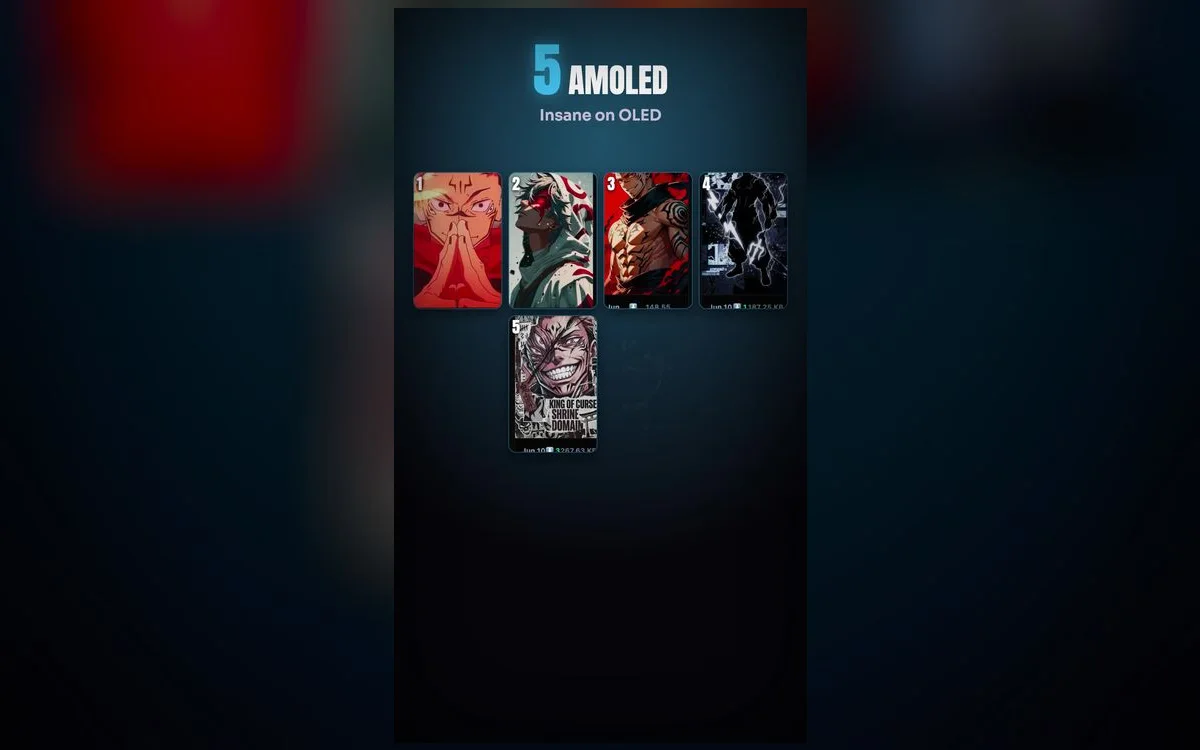
There’s a reason dark wallpapers are everywhere: on an OLED iPhone, black pixels are actually switched off, so a dark anime scene looks impossibly deep — and sips less battery than a bright one. Add glowing neon accents and you get a lock screen that looks genuinely premium.
Why AMOLED anime wallpapers hit different
- True blacks — OLED turns black pixels off, so dark scenes look infinite.
- Neon accents pop — glowing eyes and effects stand out against the dark.
- Battery-friendly — darker screens use less power on OLED iPhones.
- Clean look — a dark wallpaper keeps your clock and icons easy to read.
Worth knowing: this only works on an OLED screen. That covers iPhone X and everything after it apart from the LCD models — the XR, the 11 and the SE. On those, black is still backlit dark grey, so it looks good but the power saving isn’t there.
Good dark vs. muddy dark
Not every dark image is an AMOLED wallpaper. The difference shows up immediately:
- Real black, not dark grey. Grey looks washed out next to the bezel, especially in a dim room.
- Clean gradients. Cheap dark art bands into visible stripes where the shadows fade. Check the edges of the glow in the preview.
- One bright subject, lots of empty space. Dark wallpapers fail when everything is dim; they need a single point of light.
- A subject that isn’t under the clock. Keep the character’s face in the middle or lower third.
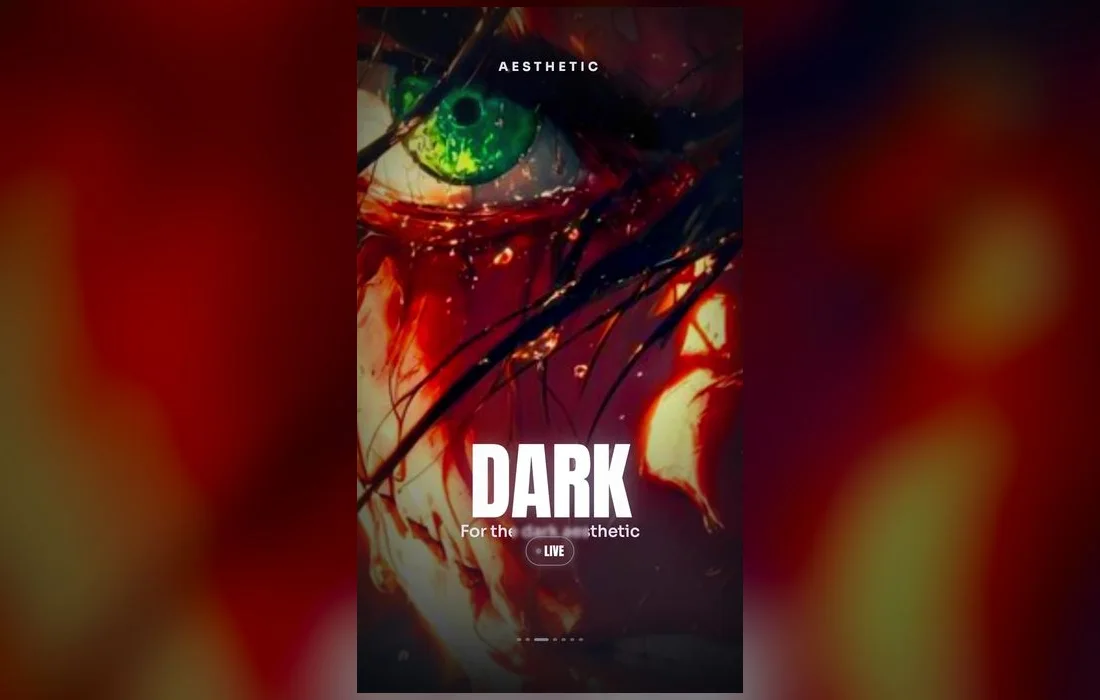
The styles worth setting
- Pure dark portraits — a single character against near-black. The most reliable pick, because nothing competes with the clock.
- Neon-accent scenes — glowing highlights on a dark backdrop. Best when the glow is one color, not five.
- Silhouette and moonlight — a shape cut out of the dark with a single light source behind it. Quiet, and it ages well.
- Cursed-energy and elemental effects — smoke, sparks and aura trails that read as motion even in a still image.
- Top dark collection — the most-set dark wallpapers, in one place.
- Living dark loops — subtle motion that shines on the lock screen.
Best on the Lock Screen
Dark live wallpapers look their absolute best on the lock screen, where the press-and-hold animation plays against those true OLED blacks.
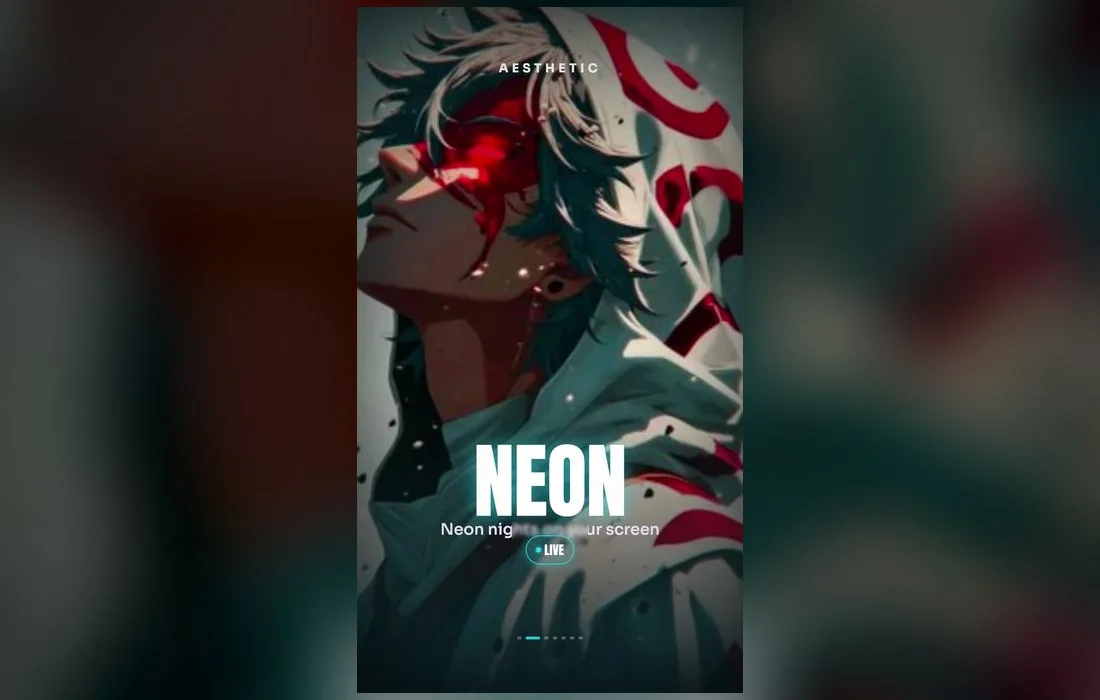
Set one in under a minute
- Open Anime Wallpaper 4K – Live and open the Dark / AMOLED collection.
- Preview a wallpaper full-screen, then save it.
- Settings → Wallpaper → Add New Wallpaper → Live Photo, pick it, set as Lock Screen.
- In the editor, check that the small LIVE badge in the corner is switched on — that’s what lets the loop play when you wake the phone.
- Tap the clock and pick a light font color. Pure white or a pale tint of the wallpaper’s own accent color both work; avoid a dark font on a dark image.
Four things that go wrong, and the fix
- The wallpaper won’t animate. Live wallpapers play on press-and-hold on the Lock Screen only, and only if the LIVE badge is enabled. They never animate on the Home Screen, and they don’t play while Low Power Mode is on.
- The blacks look grey. Either the file is dark grey rather than true black, or your brightness is pushed high in a sunlit room. Judge it indoors first.
- Depth Effect eats the clock or your widgets. Tap the three-dot button in the wallpaper editor and turn Depth Effect off, or move the subject lower.
- The image looks soft. You saved a preview instead of the full-size file, or pinched in too far while positioning. Re-save and place it without zooming.
Get the most from AMOLED
To really see the benefit, pair a dark wallpaper with a dark home screen and Dark Mode turned on system-wide — that way the true blacks carry across your whole phone, not just the lock screen. A simple, light-colored clock font stands out beautifully against the black, and a single neon-accented subject near the center keeps the design clean. It looks premium, reads clearly, and sips less battery than a bright wallpaper — the rare upgrade that costs you nothing.
FAQ
Do dark wallpapers really save battery?
On OLED iPhones, yes, because black pixels are off rather than lit. The saving is real but modest for a wallpaper you only see in glances — think of it as a small bonus on top of the look, not a reason on its own.
Why doesn’t my live wallpaper move?
Wake the phone or unlock it — that is what plays the motion, and it runs for a second or two rather than looping. Also confirm the LIVE badge is on in the editor and that Low Power Mode is off, since it suspends the animation.
Does a dark wallpaper cause OLED burn-in?
Not from a wallpaper. Burn-in comes from a static bright element left on screen for very long stretches, and your lock screen is off most of the day. A dark image is the gentler choice.
Can I use the same one on both screens?
You can, but a plain near-black home screen behind your icons usually looks better. Set the detailed art on the Lock Screen, then pick Customize Home Screen for something flatter.
Where to get them
All the dark and AMOLED picks above live in Anime Wallpaper 4K – Live — free on the App Store, with a dedicated dark collection in true 4K. Browse, preview, and set your favorite deep-black loop in about a minute.