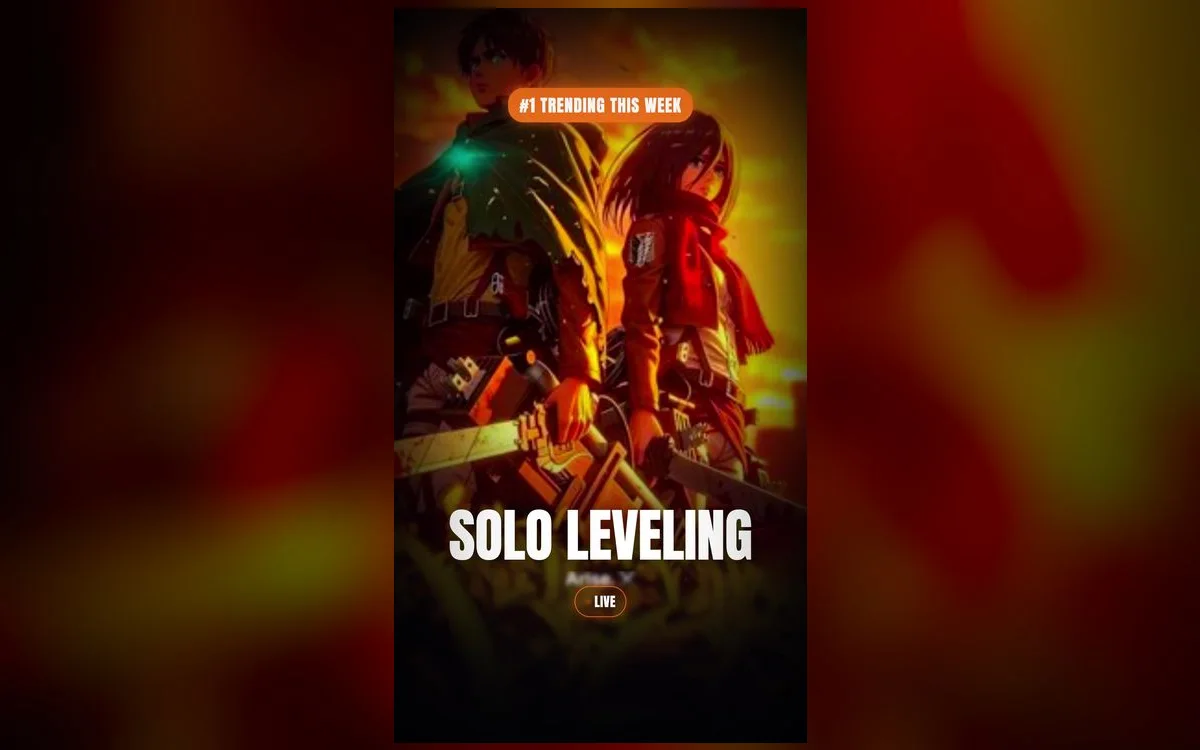
Few anime look as good on a lock screen as Solo Leveling. The dark palette, the glowing purple effects, the sheer *power* of every frame — it’s made for an OLED iPhone. If you want your phone to match the hype, here are the wallpapers worth setting.
The Solo Leveling looks worth setting
- Sung Jinwoo portraits — the shadow monarch himself, front and center.
- Glowing purple scenes — those signature effects pop against a dark screen.
- Battle frames — high-energy moments for a bold lock screen.
- Minimal dark cuts — subtle, moody frames that still read as Solo Leveling.
- Shadow soldier silhouettes — Igris and the army read as pure shape, ideal behind a clock.
- Dungeon gate art — the portal glow gives one bright anchor and leaves the rest black.
If you can’t decide, choose by how much of the frame is empty. One glowing element surrounded by darkness beats a full battle scene squeezed into a vertical crop.
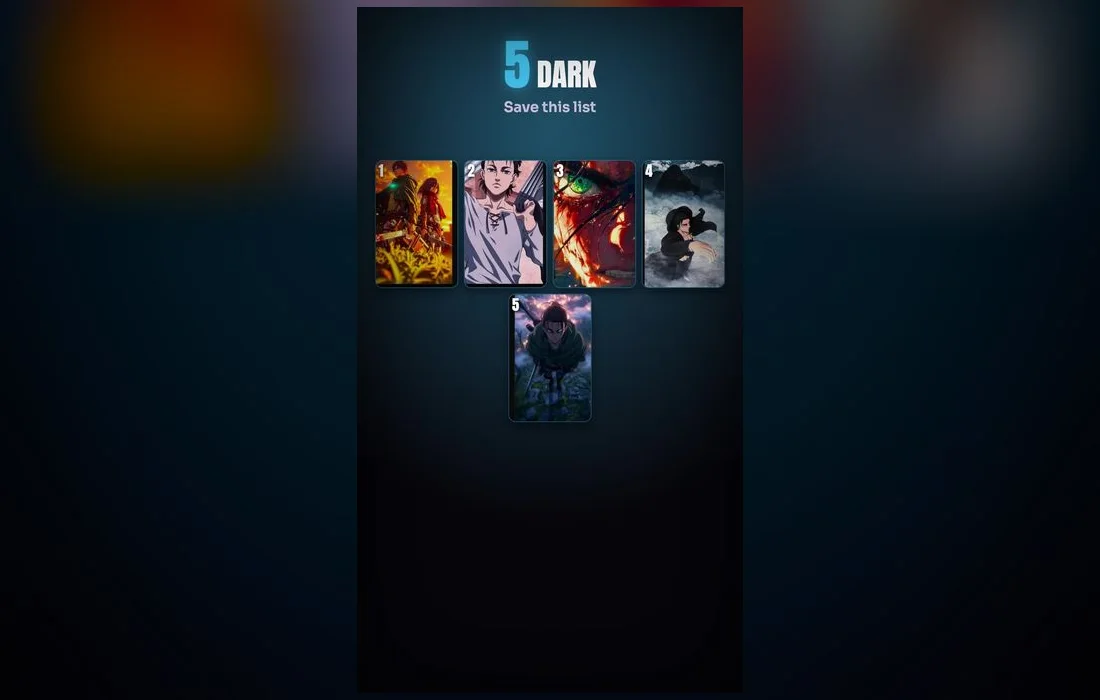
Why live beats static here
Solo Leveling’s effects — the purple glow, the shadows — come alive with motion. A live wallpaper adds just enough movement to make your lock screen feel powerful every time you pick up your phone, and in true 4K every detail stays razor-sharp.
Set expectations correctly, though. A Live Photo wallpaper plays when you wake or unlock the phone, and it never animates on the Home Screen. The still frame is what you’ll see almost every time, so pick one that looks deliberate frozen.
Best on a dark home screen
Solo Leveling’s dark frames look best with a clean, dark home screen and a simple clock — let the wallpaper be the star.
Follow along in Anime Wallpaper 4K – Live
Free on the App Store for iPhone and iPad.
App Store
What separates a great dark frame from a muddy one
- True black, not dark gray. On an OLED iPhone, black pixels switch off. Real black looks deeper and costs less battery than charcoal.
- A quiet top third. If Jinwoo’s face or a burst of purple sits behind the numbers, the two fight each other.
- One light source. The strongest Solo Leveling frames glow in a single place and let the rest fall away.
- A clean loop. A loop that jumps at the end is more distracting than a still image.
- Enough resolution to crop. A 4K source lets you zoom and reposition without the line art going soft.
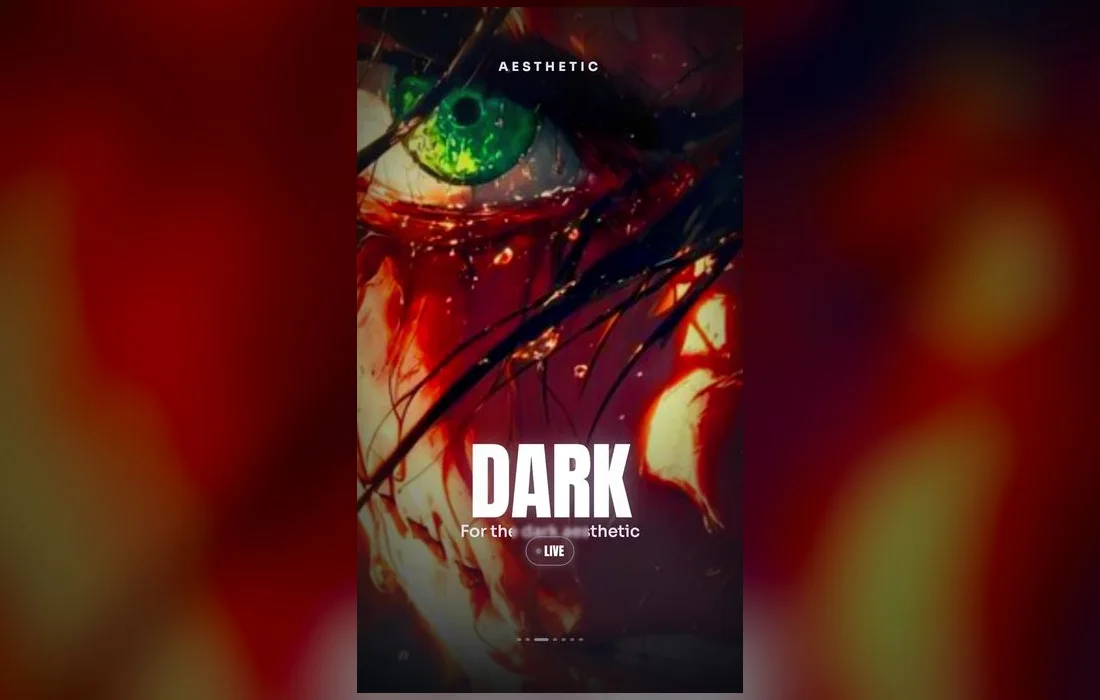
How to set one
- Open Anime Wallpaper 4K – Live and search Solo Leveling.
- Preview a wallpaper full-screen, then save it to Photos.
- Go to Settings → Wallpaper → Add New Wallpaper and choose Photos.
- Pick the Live Photo you saved and check that the Live Photo icon in the lower-left corner is switched on.
- Pinch and drag so the glow sits below the clock, then tap Add.
- Lock the phone and wake it to watch it move.
Build the rest of the screen around it
- Recolor the clock. Press and hold the Lock Screen, tap Customize, then tap the time to change its font and color. Cold violet or plain white keeps the palette intact.
- Leave the widget row empty on portrait frames — widgets cover the art and switch the depth effect off.
- Use depth on purpose. A shot with clear separation between character and background can push Jinwoo’s shoulders in front of the numbers, which is what makes a setup look designed.
- Give each Focus its own screen. In Settings → Focus, link a Lock Screen to a Focus so a loud battle frame swaps for something calm during class.
Three things that go wrong
- It won’t animate. Low Power Mode stops Live Photo playback, and so does Reduce Motion under Settings → Accessibility → Motion. Switch either one off and the loop comes back.
- The purple looks dull. Night Shift and True Tone warm the display and mute violets badly. Check Settings → Display & Brightness if it looked richer in the app.
- You saved it and can’t find it. Check the Recents album in Photos instead of scrolling your library, and confirm photo access under Settings → Privacy & Security → Photos.
Common questions
Are Solo Leveling live wallpapers free?
Yes — the app is free to download, with a Solo Leveling collection you can browse and set at no cost. An optional premium upgrade exists, but you don’t need it to save one and put it on your lock screen.
Do live wallpapers drain the battery?
A little more than static ones, since the screen animates while you hold it. Dark Solo Leveling frames are gentle on OLED iPhones because black pixels draw almost nothing. Pick calmer loops if you’re watching your battery.
Can I use one on my Home Screen too?
You can set the same image on both, but the Home Screen only ever shows the still frame. Many people pair a detailed Jinwoo frame on the Lock Screen with a plain dark cut behind their apps.
Why does my wallpaper look cropped wrong?
The picker fits a wide image to a much taller screen, so the edges get cut. Zoom out slightly and drag the subject into the lower two-thirds before tapping Add, or pick a wallpaper already framed vertically.
Where to get them
Every Solo Leveling wallpaper above lives in Anime Wallpaper 4K – Live — free on the App Store, with a growing Solo Leveling collection in real 4K. Browse, preview and set your favorite in under a minute.