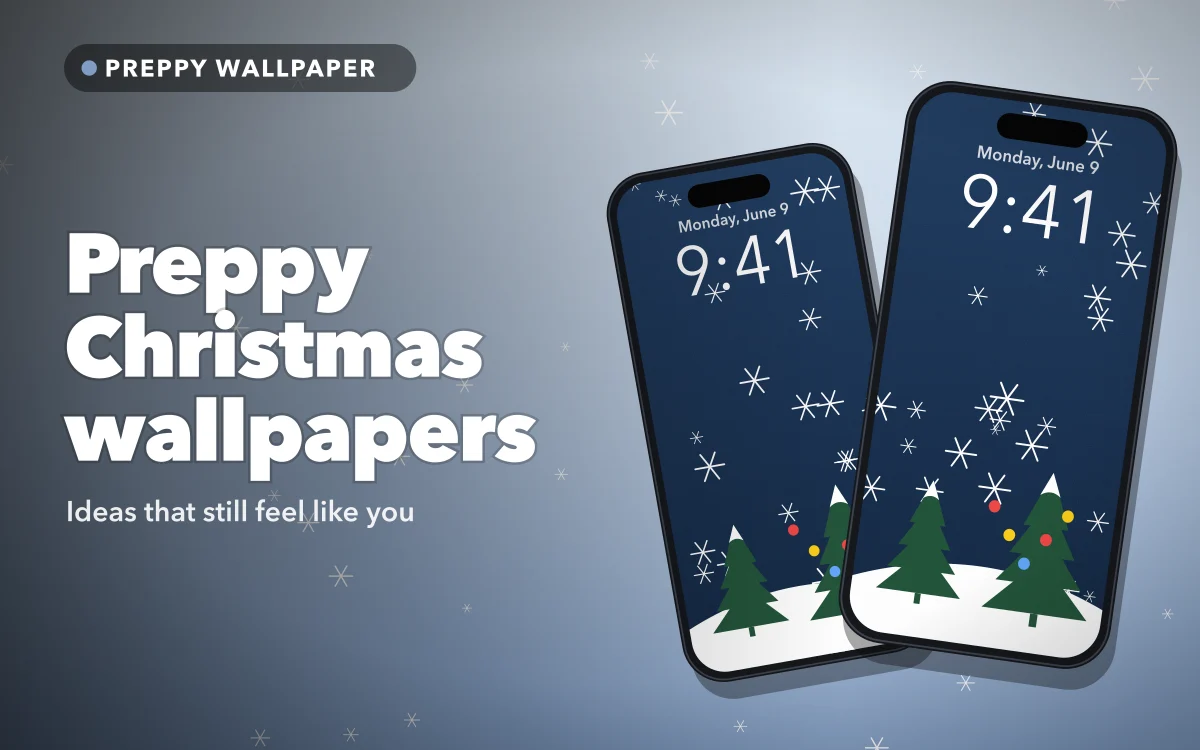
Traditional Christmas wallpapers are easy to find and just as easy to tire of. Red, green and a bit of snow can look lovely, but if your phone is usually covered in pink and smiley faces, a traditional Santa can feel as though it belongs on somebody else's screen.
A preppy version keeps the festive feeling without giving up your usual style. It takes familiar Christmas objects and redraws them in pink, pastel and glitter. Here are six looks worth trying, and some practical tips for making them work on an iPhone.
What makes a Christmas wallpaper preppy
Three things usually separate the preppy version from an ordinary festive picture:
- Colour. Hot pink and pastel pink lead, often with white, gold or a little lilac. Red and green can appear, but they rarely dominate.
- Objects drawn large and simply. One big bow or one neat tree works better than a detailed winter scene.
- A sense of humour. Preppy designs are playful, so a smiley face in a Santa hat fits right in.
If you want a broader seasonal mix, including less pink options, our guide to winter and festive aesthetic wallpapers covers those.
Six looks to try
1. The pink Christmas tree. The simplest and most recognisable idea. A bright pink tree on a pale background feels festive straight away, and it works just as well as a repeating pattern of tiny trees.
2. Bows and ribbons. A giant bow in satin pink or red moves easily between coquette and Christmas. Because it is not obviously seasonal, it will not look out of date on the 27th of December.
3. Candy cane stripes. Pink and white diagonal stripes make a clean, graphic background. They have the advantage of being very simple, so your clock and widgets sit on top without much trouble.
4. Nutcrackers. A row of pink or pastel nutcrackers is one of the most popular looks in this style. Their tall, narrow shape fits an iPhone screen particularly well.
5. Gingerbread and cookies. Iced gingerbread figures, pink frosting and little sugar cookies give you a warmer, cosier look. They are a nice choice if an all-pink screen feels like too much.
6. Smiley Santa hats. A yellow or pink smiley face in a Santa hat is pure preppy humour, and it is a good way of making a favourite design festive with very little effort.
You can also mix these. A background of candy stripes with one bow at the bottom gives you a calm area for the clock and a clear decoration below it.
Follow along in Preppy Wallpaper: Pink Cute
Free on the App Store for iPhone and iPad.
App Store
Glitter, clocks and readability
Christmas designs often include glitter and tiny details, which can make the clock harder to read. Before you commit to a wallpaper, try it on your Lock Screen and look at it from arm's length.
To adjust it, touch and hold your Lock Screen, tap Customize, then tap the time. These settings help most:
- Clock colour. White disappears against pale pink. A deeper berry or dark red is usually easier to read, and it looks more seasonal too.
- Position. Pinch and drag the picture so that the busiest part sits below the time.
- Plain top area. A design with a simple upper third will always be easier to use than one with sparkle all over it.
If you want to see how others handle this, our aesthetic Lock Screen ideas has more examples of clock and wallpaper pairings.
Rotate your wallpapers through December
You do not have to choose just one. iOS can shuffle through an album automatically, which is a nice way of making your phone feel a little like an advent calendar.
- Save your favourite Christmas wallpapers to Photos, and put them in their own album.
- Open Settings, tap Wallpaper, then tap Add New Wallpaper.
- Choose Photo Shuffle, then select your album.
- Set the frequency to Daily, or choose Hourly, On Lock or On Tap if you prefer more variety.
iOS picks the order, so it will not count down the days in sequence. Before you start, make sure that every image in the album works with your clock, since you will not get to check each one as it appears.
Keep your everyday wallpaper
You do not need to replace your usual Lock Screen to try a Christmas one. An iPhone can store several Lock Screens at once. Touch and hold your current one, swipe to the end and tap the add button to create a new one. In January, touch and hold again and swipe back to your old design, with its clock and widgets exactly as you left them.
Matching the Home Screen
Festive patterns can make it hard to find your apps, so the Home Screen usually needs a simpler version of the same idea.
- Use one colour from the Lock Screen. A plain soft pink can be enough to tie the two screens together.
- Use a wide pattern. Small trees spaced well apart will sit behind icons better than a large central design.
- Use the blur option. When you customise the Home Screen, iOS can blur your wallpaper, which removes all the detail while keeping the colours.
Our guide to matching Lock and Home Screen sets goes through this in more detail, and the best pink wallpapers has plenty of plain backgrounds to use after the holidays.
Quick answers
When should I change to a Christmas wallpaper?
There is no right date. Many people change after Thanksgiving or on the first of December. Choosing a design with bows or stripes means you can start early without it looking too seasonal.
How do I make my wallpaper change every day?
Create an album of wallpapers, then use Photo Shuffle in the wallpaper settings and set the frequency to Daily. iOS chooses the order.
Why can I not read my clock over a glitter wallpaper?
Fine detail gives the numbers nothing solid to stand against. Choose a design with a plainer top area, or change the clock to a stronger colour.
Where to get it
Preppy Wallpaper: Pink Cute describes itself as having more than 1,000 HD wallpapers, with search by aesthetic, mood or colour, saved favourites and seasonal drops for the holidays. Its listing says the wallpapers are free, with no hidden charges.
Save a few favourites early, then let the shuffle do the rest.