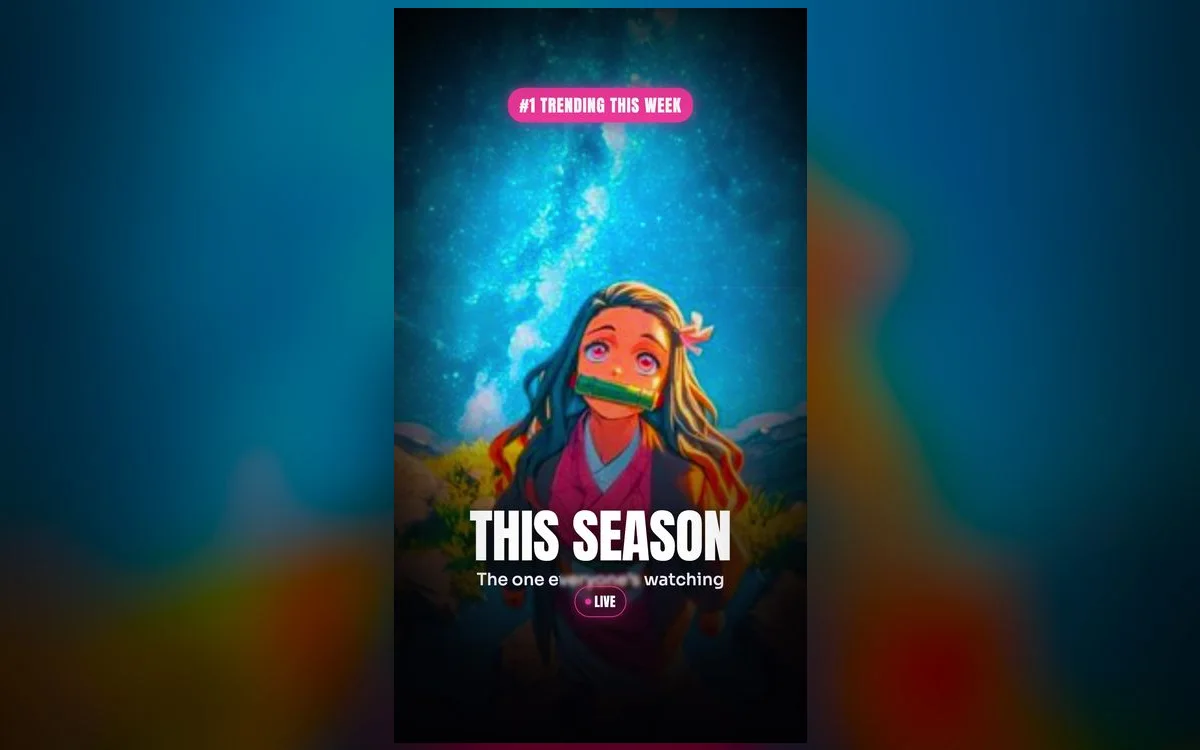
Anime wallpapers move in waves — whatever series everyone is watching this season is the one lighting up lock screens everywhere. If you want your iPhone to feel current (and start a few "what anime is that?" conversations), here’s what’s trending right now.
What’s trending this season
These are the series people are setting most in 2026:
- Solo Leveling — dark, powerful, and perfect for a bold lock screen.
- Demon Slayer — rich colors and iconic character frames that pop in 4K.
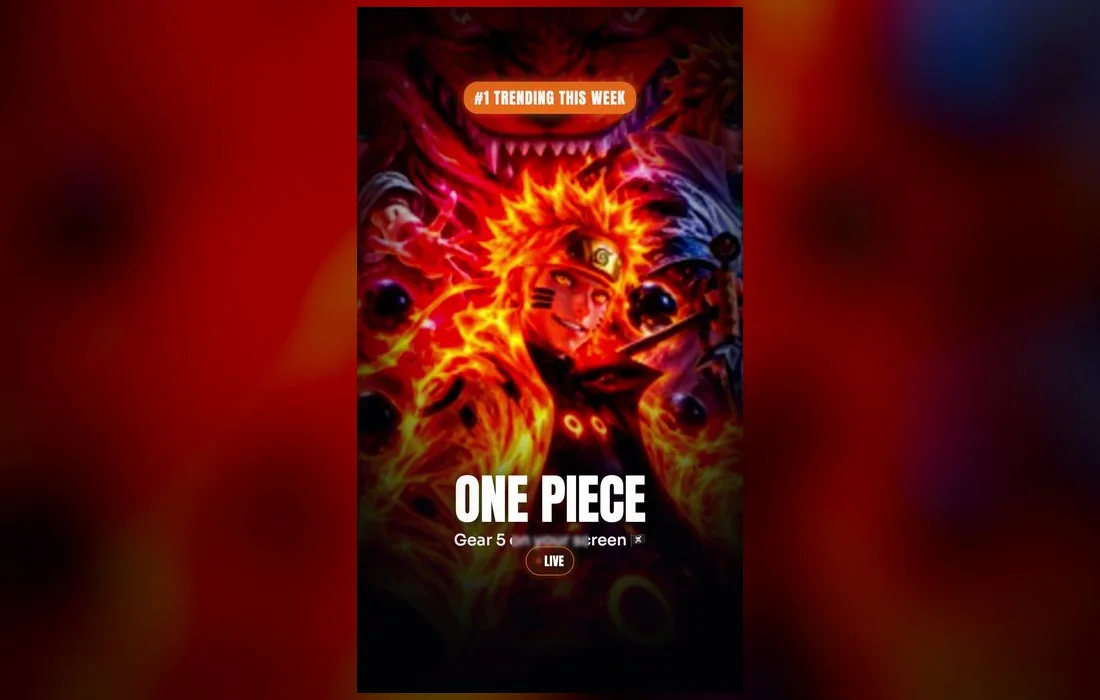
- One Piece — the eternal favorite, with fresh arcs keeping it on top.
- Jujutsu Kaisen — moody, high-contrast frames that look premium on AMOLED.
Two more never really leave the rotation: Attack on Titan, whose muted grading suits anyone who wants something less flashy, and Chainsaw Man, whose grainy, high-noise frames pair beautifully with a heavy Lock Screen clock font.

Why live wallpapers beat static ones
A moving wallpaper makes a trending anime feel alive — a subtle animation every time you pick up your phone. In genuine 4K, the line art stays razor-sharp, and dark scenes look incredible on modern iPhone screens.
One expectation to set first: a Live Photo wallpaper plays when you wake or unlock the phone, not continuously, and it doesn’t animate on the Home Screen or the always-on display. That’s exactly why the battery cost is negligible — and why the frame you land on when it’s still matters just as much as the motion.
What makes a frame work behind the clock
Great art doesn’t automatically make a great wallpaper. Check three things before you commit:
- The top third. The clock and date live there. A wallpaper with the character’s face high in frame will fight the time all day.
- Contrast under the widgets. iOS tints the clock for you, but busy mid-tone areas make small widget text hard to read. Dark or blown-out regions are both easier to sit text on than a cluttered middle grey.
- Where the crop lands. Phone screens are tall and most anime art is wide, so you will lose the edges. Pinch and drag on the preview screen until the composition still reads.
How to set a trending wallpaper
- Open Anime Wallpaper 4K – Live and browse the Trending collection.
- Tap a wallpaper to preview the animation full-screen.
- Save it to Photos.
- Go to Settings → Wallpaper → Add New Wallpaper and choose Photos.
- Pick the Live Photo you just saved, make sure the Live Photo icon in the lower-left corner is switched on, then position the frame.
- Tap Add, choose Set as Wallpaper Pair, then lock the phone and wake it to watch it move.
Refreshed every season
The trending collection updates with each new season, so you’re never stuck on last year’s pick. Swap yours whenever a new series takes over.

Keep your setup fresh
- Rotate weekly to match whatever you’re currently watching.
- Match the mood — a calm home screen makes a bold lock screen pop.
- Go dark — trending anime frames look best on a clean, dark home screen.
- Tie it to a Focus. In Settings → Focus, link a Lock Screen to a Focus mode so your loud seasonal pick swaps for something plain during school or work.
If it won’t animate
Three causes account for nearly every case:
- Low Power Mode is on. It stops Live Photo playback. Check Settings → Battery.
- Reduce Motion is on. Settings → Accessibility → Motion → Reduce Motion.
- You saved a video, not a Live Photo. Only Live Photos can be set as a moving wallpaper. If the Live Photo toggle never appears on the wallpaper preview, the file in your camera roll is a video clip.
Common questions
Do live wallpapers drain the battery?
Not in any way you’ll notice. They only play when you wake or unlock the phone, so the wallpaper sits as a still image the rest of the time. A bright, mostly-white wallpaper costs you more on an OLED screen than a dark animated one does.
Can I use a trending wallpaper on my Home Screen too?
You can set the same image on both halves of the pair, but it won’t animate on the Home Screen — iOS reserves that for the Lock Screen. Most people blur the Home Screen copy so app icons and labels stay readable over the artwork.
Will the depth effect work with anime art?
Sometimes. iOS looks for a clear subject to tuck in front of the clock, and it works best with one character, clean edges, and an uncluttered background. Adding Lock Screen widgets switches depth effect off entirely, so pick one or the other.
How often should I change it?
Whenever it stops feeling like yours. If you’re following a currently-airing series, swapping once per arc is a natural rhythm and keeps the phone in step with what you’re actually watching.
Where to get them
Every trending wallpaper above lives in Anime Wallpaper 4K – Live — free on the App Store, updated each season with the series everyone’s watching, in real 4K. Browse the Trending tab, preview any loop, and set your favorite in under a minute.